How to Mount ISO Files Using PowerISO

Asif Mohammad Sovon
Asif Mohammad Sovon, IT Assistant at Bangladesh Air Force and Fileion tech writer, simplifies tech t...
You downloaded a game, software installer, or operating system image. The file ends in .iso. Now what? You do not have a blank disc. You do not have a burner. And you definitely do not want to wait.
That is exactly where mounting an ISO file saves you. Instead of burning the disc, you create a virtual drive on your computer. Your system reads it as if a real disc were inserted. Fast, clean, and simple.
PowerISO is one of the most reliable tools for this job. It works on Windows, supports large files, and takes only a few clicks to get running.
In this guide, you will learn what ISO mounting means, how PowerISO handles it, and how to go from download to a fully mounted virtual drive in minutes.
Let's dive into the basics before moving to the hands-on steps.
What is ISO Mounting?
An ISO file is a complete digital copy of a disc. It contains everything a physical CD or DVD holds, packed into a single file. Mounting means loading that file into a virtual drive so your computer can read it like a real disc.
PowerISO is a disk image utility that lets you create, edit, compress, and mount ISO files. It installs a virtual drive on your system and handles the entire process without any hardware.
Students use it to access software installations. Gamers use it to run disc-based games. IT professionals use it to deploy operating system images. Developers use it to test software builds packaged as disc images.
Key Features
PowerISO creates up to 23 virtual drives on a single computer. You can mount multiple ISO files at the same time.
It supports ISO, BIN, NRG, IMG, DAA, and many other disc image formats. You do not need to convert files before mounting them.
PowerISO integrates directly into Windows Explorer. Right-clicking an ISO file gives you instant mount options from the context menu.
Step-by-Step Guide: How to Mount ISO Files Using PowerISO
-
Download PowerISO from Fileion and run the installer. Follow the on-screen prompts and accept the default settings unless you need a custom install location.
-
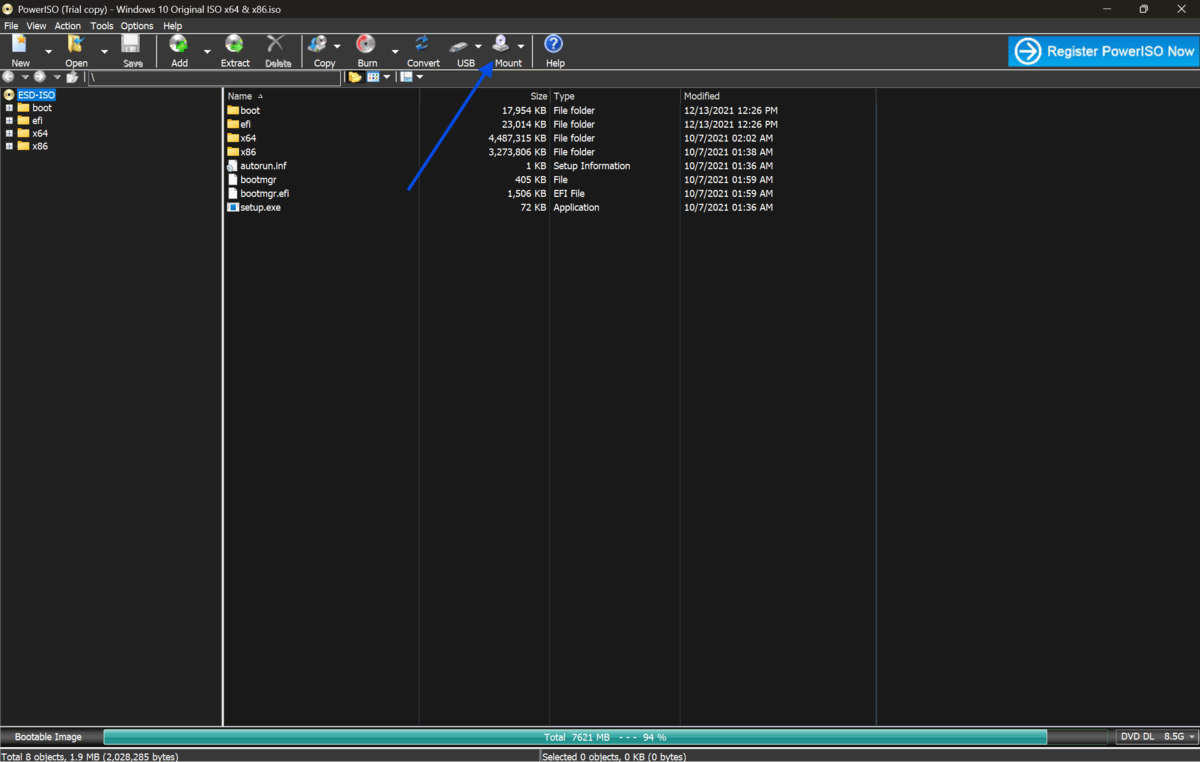
Launch PowerISO after installation. The main interface opens with a toolbar and menu bar at the top.
-
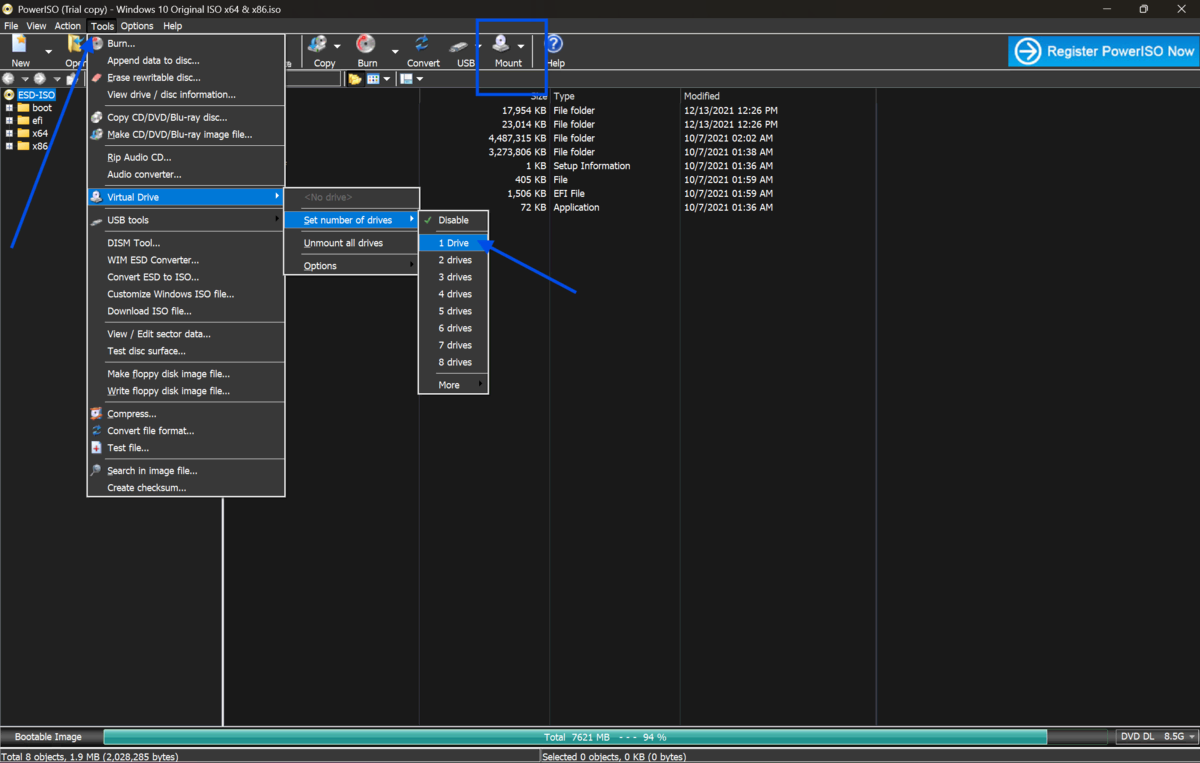
Go to the top menu and click on "Tools." A dropdown menu will appear with several options.
-
Select "Mount Image to Virtual Drive" from the dropdown. This opens the virtual drive manager.
-
In the virtual drive manager, click the drive selector at the top if you have multiple virtual drives. Choose the drive letter you want to use, such as D: or E:.
-
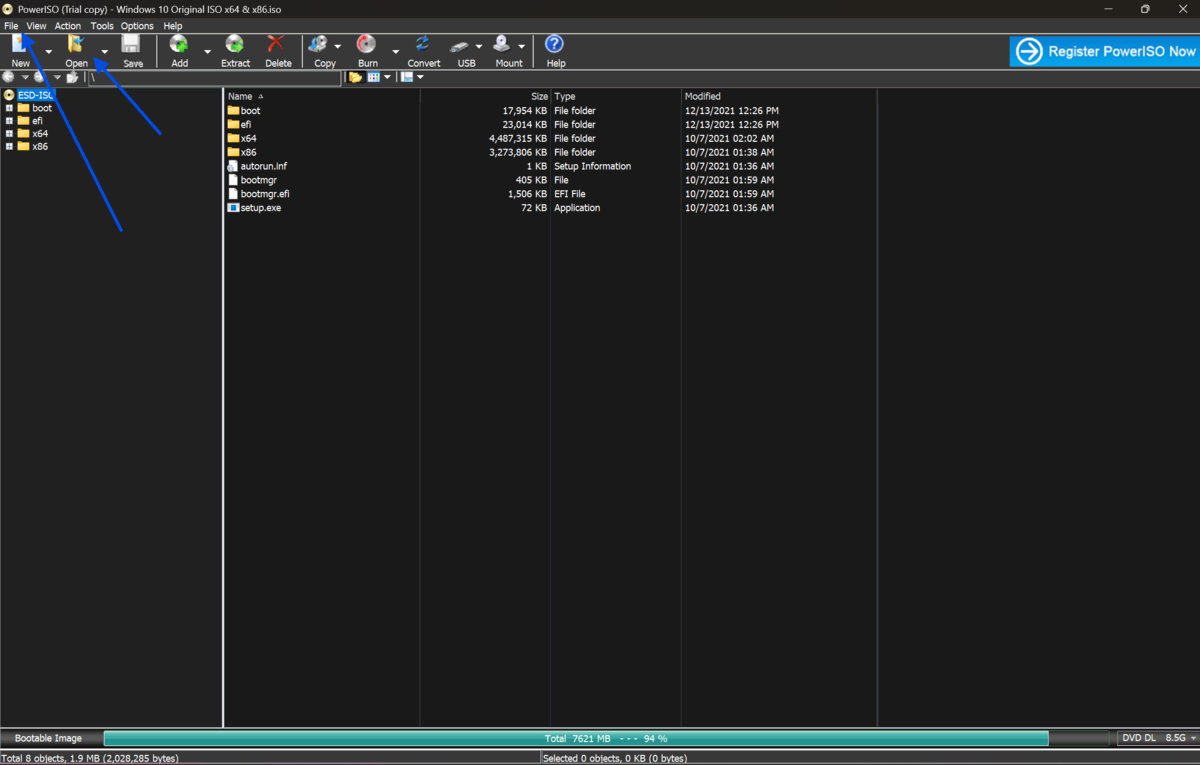
Click the folder icon or the "Image File" field. A file browser window will open.
-
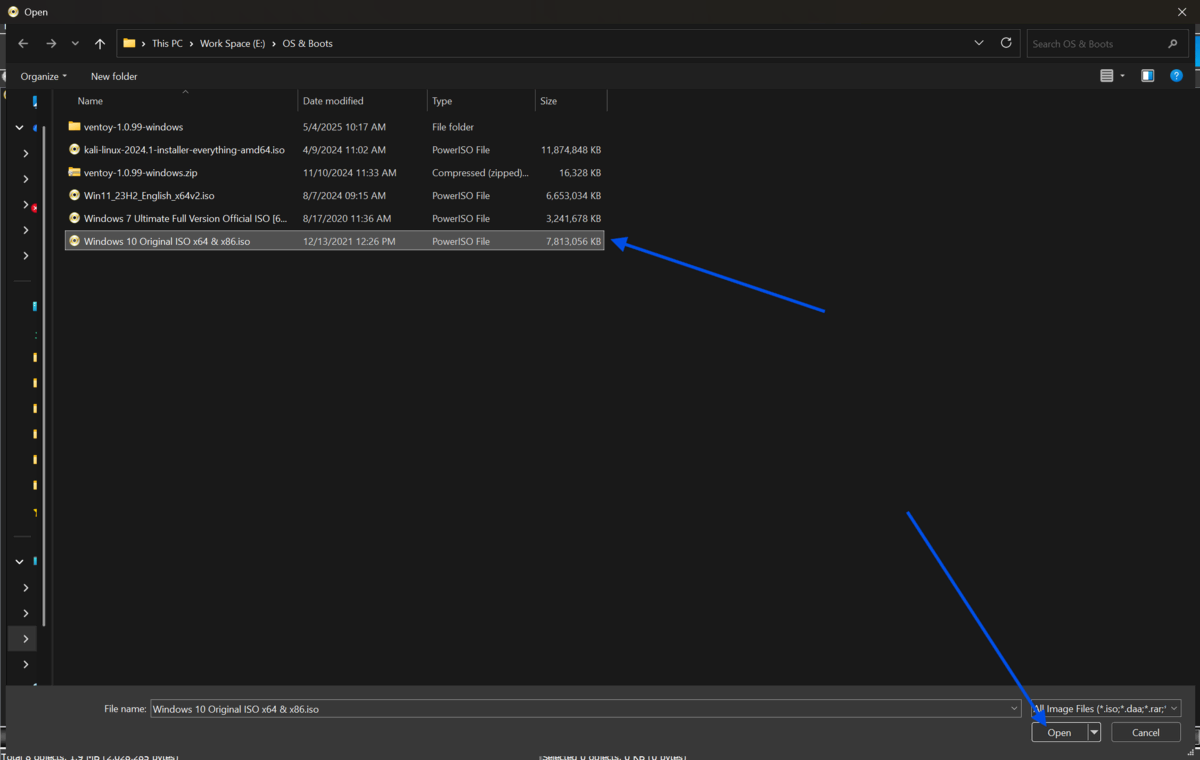
Navigate to the folder where your ISO file is saved. Select the ISO file and click "Open."
-
Click the "Mount" button. PowerISO will load the ISO file into the selected virtual drive immediately.
-
Open "This PC" or "My Computer" on your Windows desktop. You will see the virtual drive listed alongside your physical drives.
-
Double-click the virtual drive to open it. The contents of the ISO file appear exactly as they would on a real disc.
-
Run the installer, access the files, or launch the software directly from the virtual drive. Everything works the same as a physical disc.
-
When you are finished, return to the PowerISO virtual drive manager, select the drive, and click "Unmount" to safely eject the image.
Quick Tips
-
Right-click any ISO file in Windows Explorer and select "Mount image to virtual drive" for a faster workflow without opening PowerISO manually.
-
If you need to access just a few files inside the ISO, use PowerISO's built-in file browser instead of mounting the entire image.
-
Assign a consistent drive letter to your virtual drive, so other software always recognizes it in the same location.
-
If the virtual drive does not appear in File Explorer, restart your computer after installation to let the driver load properly.
Common Mistakes to Avoid
-
PowerISO installs a virtual driver during the first-time setup. If you skip or cancel this step, the mount function will not work. Reinstall and allow all components to be installed fully.
-
If your ISO did not download completely, PowerISO may fail to mount it or show errors. Verify the file size matches the source and re-download if needed.
-
Some software looks for specific drive letters when reading installations. If a program fails to detect your mounted disc, try changing the virtual drive letter in PowerISO settings.
-
Leaving an image mounted and forcing a shutdown can occasionally cause driver conflicts on restart. Always unmount your ISO files before shutting down your computer.
Pricing and Availability
PowerISO offers a free version with a file size limit of 300 MB for burning. For full functionality, including unlimited ISO mounting and editing, a personal license is available as a one-time purchase for 39.95$/each.
A single-user license covers one computer. The software runs on Windows XP through Windows 11 and also supports Windows Server editions. A macOS version is available separately for basic ISO operations.
You can download PowerISO directly from our site to get the latest verified version.
Final Verdict
PowerISO is a straightforward, dependable tool for anyone who works with disc images regularly. It removes the need for physical discs, cuts setup time, and keeps your workflow moving without extra hardware.
If you install software from ISO files, manage system images, or run legacy disc-based programs, PowerISO covers everything in one lightweight application. The interface is not complex, the steps are repeatable, and the virtual drive system works reliably across Windows versions.
Whether you are a student installing software for a course, an IT professional deploying operating systems, or a gamer running older disc-based titles, this tool fits the job.
Download PowerISO from our site today and mount your first ISO file in under five minutes.
FAQs
Can I mount an ISO file without installing PowerISO?
Windows 10 and Windows 11 have a built-in ISO mounting feature. You can right-click an ISO and select "Mount" without any third-party software. However, PowerISO offers more control, multi-drive support, and broader format compatibility.
How many virtual drives can PowerISO create?
PowerISO supports up to 23 virtual drives on a single system. You can mount multiple ISO files at the same time on separate virtual drives.
Does PowerISO support formats other than ISO?
Yes. PowerISO supports BIN, NRG, IMG, DAA, CDI, MDF, and several other disc image formats in addition to ISO.
Is PowerISO safe to download and use?
PowerISO is a legitimate application developed by Power Software Ltd. Download it from our site or the official PowerISO website to avoid modified or bundled versions from third-party sources.
Can I edit files inside an ISO using PowerISO?
Yes. PowerISO includes a built-in editor that lets you add, remove, or extract files from an ISO without mounting it. Open the ISO through the PowerISO interface and use the file manager to make changes.
Comments
Let us know about your thoughts
Explore more articles related to PowerISO
Here you will find all the latest tips and tricks about PowerISO . Also you will get many solution of problems which you may face while using this app.
Published at: Mar 17, 2026
How to Compress ISO Files Using PowerISO
You just downloaded a massive ISO file. It's eating up your storage. And you need...
Published at: Apr 12, 2026
How to Edit ISO Files Without Extracting Them in PowerISO
You have an ISO file. You need to change one file inside it. But you do...
Published at: Apr 12, 2026
How to Mount ISO Files Using PowerISO
You downloaded a game, software installer, or operating system image. The file ends in .iso. Now...

Published at: Apr 17, 2026
How to Extract ISO Files Using PowerISO Without Errors
You downloaded an ISO file. Now what? Most users stare at the iso file and...

Published at: Apr 18, 2026
How to Convert BIN to ISO Using PowerISO
You have a BIN file on your desktop. You try to mount it. Nothing works. Sound...

Published at: Apr 20, 2026
How to Burn ISO to USB or DVD Using PowerISO
You just downloaded an ISO file. Maybe it is a Windows installer, a Linux distro,...


Mount. Burn. Done.
PowerISO is a safe and powerful ISO toolkit that lets you open, edit, compress, and mount disc image files with ease. From creating bootable USBs to backing up old CDs or running virtual drives, it handles it all. Simple yet feature-rich, it’s the go-to choice for managing ISO files.