How to Extract ISO Files Using PowerISO Without Errors


Asif Mohammad Sovon
Asif Mohammad Sovon, IT Assistant at Bangladesh Air Force and Fileion tech writer, simplifies tech t...
You downloaded an ISO file. Now what? Most users stare at the iso file and have no idea how to open it. It is not a regular folder. It is not a zip file. You cannot just double-click it and expect things to work. That is where PowerISO comes in.
PowerISO is one of the most reliable tools for handling ISO files. It lets you extract, mount, burn, and edit disc image files with ease. Whether you are a student, gamer, developer, or IT professional, knowing how to extract ISO files correctly saves you time and prevents data loss.
In this guide, you will learn exactly how to extract ISO files using PowerISO without running into errors.
Let's dive into the basics before moving to the hands-on steps.
What is PowerISO?
PowerISO is a disk image utility software for Windows. It handles ISO, BIN, NRG, IMG, and many other disc image formats.
It was developed by PowerISO Computing and has been widely used since the early 2000s. Students use it to access software installations. Gamers use it to run game backups. Developers and IT professionals use it to work with system images and bootable files.
With PowerISO, you can extract individual files from an ISO, mount the image as a virtual drive, burn it to a disc, or convert it to another format. It is a complete disc image management tool in one package.
Key Features
PowerISO works with over 30 disc image formats, including ISO, BIN, NRG, IMG, DAA, and CDI. You do not need separate tools for different file types.
PowerISO can mount ISO files as virtual drives. This means your system treats the image as if a real disc is inserted. No physical media is needed.
You can pull specific files directly from an ISO without mounting the entire image. This is faster and uses less system memory.
PowerISO can compress large ISO files into DAA format and convert between multiple image types. This is useful when storage space is limited.
Step-by-Step Guide: How to Extract ISO Files Using PowerISO
-
Download and install PowerISO from Fileion. Our site offers the latest verified version. Run the installer and follow the on-screen prompts to complete setup.
-
Open PowerISO after installation. The main interface will appear with a toolbar and an empty file panel at the bottom.
-
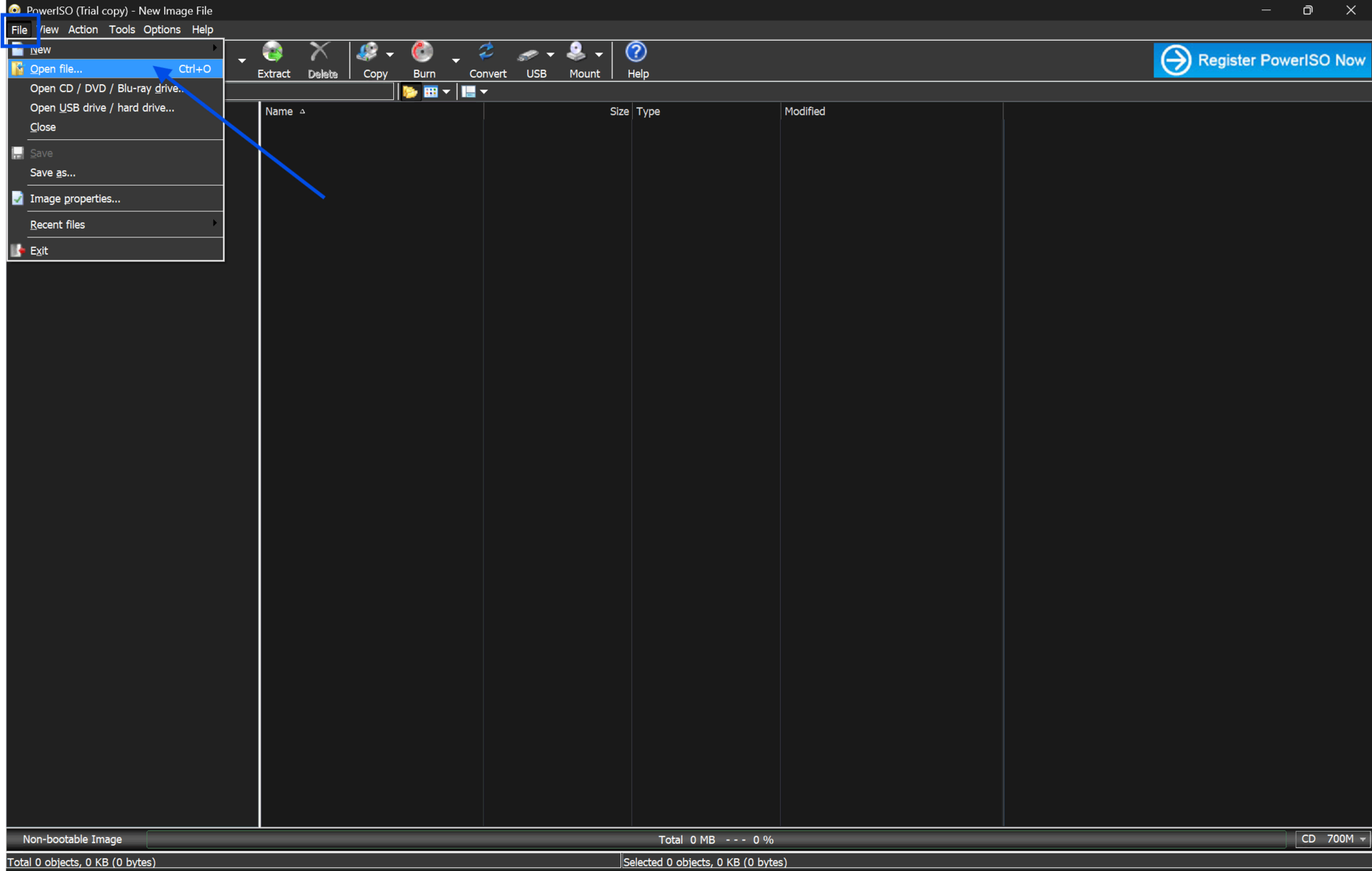
Click "File" in the top menu bar. Select "Open" from the dropdown list.
-
Browse to the location where your ISO file is stored. Select the ISO file and click "Open." The file contents will now appear inside the PowerISO window.
-
Look at the file list panel. You will see all the folders and files contained inside the ISO image, just like a regular file explorer.
-
Select the files or folders you want to extract. To select all contents, press Ctrl + A. To pick specific files, hold Ctrl and click each item.
-
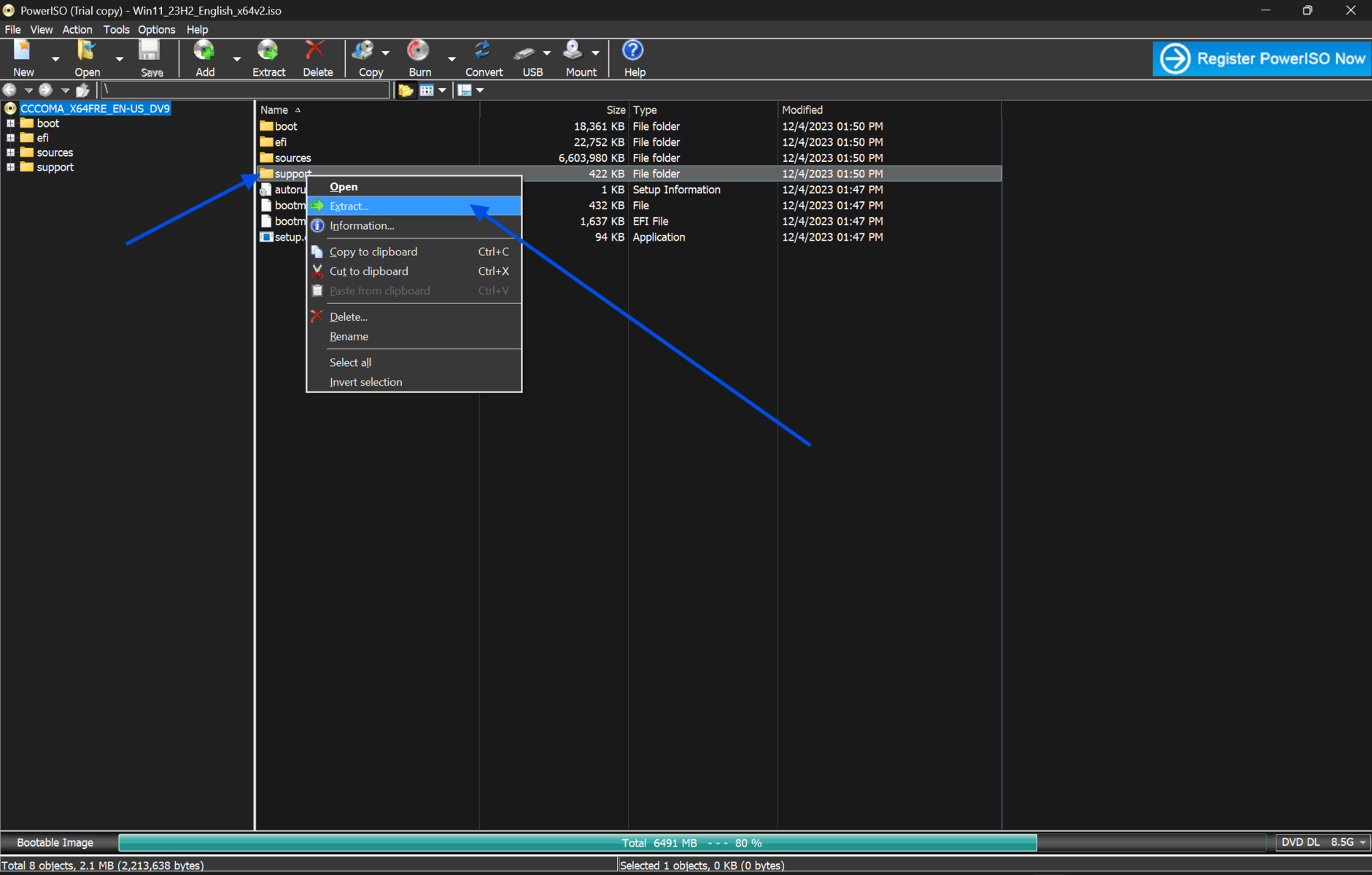
Right-click on your selection. A context menu will appear with several options.
-
Click "Extract To" from the context menu. A dialog box will open asking you where to save the extracted files.
-
Browse to your preferred destination folder. You can also create a new folder directly from this dialog. Click "OK" to confirm.
-
PowerISO will begin extracting the selected files. A progress bar will appear at the bottom of the window. Wait for it to be completed.
-
Once extraction is finished, navigate to your destination folder using File Explorer. All extracted files will be there and ready to use.
-
If any file fails to extract, check if the ISO file is corrupted. You can verify this by re-downloading the original file and repeating the process.
Quick Tips
-
Use the drag-and-drop feature to move files from the ISO panel directly into a folder on your desktop. It is faster than using the menu.
-
If your ISO contains a large number of files, extract only what you need. Extracting everything takes longer and uses more disk space.
-
For repeated use, pin PowerISO to your taskbar. It saves time when you work with disc images regularly.
Common Mistakes to Avoid
-
Many users extract files on the same drive where the ISO is stored. If that drive runs out of space mid-extraction, the process fails and leaves incomplete files. Always check your free space first.
-
If another program is set as the default for ISO files, PowerISO may not open correctly when you double-click an .iso file. Set PowerISO as the default app for ISO during installation to avoid this.
-
Do not close PowerISO while extraction is in progress. This can corrupt the output files. Always wait for the progress bar to finish.
Pricing and Availability
PowerISO offers both a free and a paid version.
The free version allows you to open and extract ISO files but limits the creation of disc images to 300MB. For most extraction tasks, the free version is sufficient.
The paid license is a one-time purchase. As of the latest update, a personal license costs around $39.95 USD. This unlocks full functionality with no size restrictions.
PowerISO is available for Windows XP through Windows 11, as well as macOS. A portable version is also available, which runs without installation.
Final Verdict
PowerISO is a practical solution for anyone who works with disc image files. It handles extraction cleanly, supports a wide range of formats, and gives you full control over what you pull out of an ISO.
The interface is straightforward, and even beginners can extract files within minutes of installing the software.
Ready to get started? Download PowerISO from our site today. You will get the latest verified version with no bundled bloatware.
FAQs
Can I extract ISO files without mounting them in PowerISO?
Yes. PowerISO lets you open an ISO file and extract its contents directly without mounting it as a virtual drive. Just open the file, select the items you need, and use the Extract To option.
Why does my extraction fail halfway through?
This usually happens due to low disk space, a corrupted ISO file, or an interrupted download. Check your available storage and verify the ISO checksum before trying again.
Does PowerISO work on Windows 11?
Yes. PowerISO is fully compatible with Windows 11, as well as older versions, including Windows 7, 8, and 10.
Is there a free version of PowerISO?
Yes. The free version supports opening, extracting, and mounting ISO files. The main limitation is that it cannot create disc images larger than 300MB.
Can PowerISO extract files from formats other than ISO?
Yes. PowerISO supports over 30 disc image formats, including BIN, NRG, IMG, CDI, and DAA. You can extract files from all of these using the same process described in this guide.
Comments
Let us know about your thoughts
Explore more articles related to PowerISO
Here you will find all the latest tips and tricks about PowerISO . Also you will get many solution of problems which you may face while using this app.
Published at: Mar 17, 2026
How to Compress ISO Files Using PowerISO
You just downloaded a massive ISO file. It's eating up your storage. And you need...
Published at: Apr 12, 2026
How to Edit ISO Files Without Extracting Them in PowerISO
You have an ISO file. You need to change one file inside it. But you do...
Published at: Apr 12, 2026
How to Mount ISO Files Using PowerISO
You downloaded a game, software installer, or operating system image. The file ends in .iso. Now...
Published at: Apr 17, 2026
How to Extract ISO Files Using PowerISO Without Errors
You downloaded an ISO file. Now what? Most users stare at the iso file and...

Published at: Apr 18, 2026
How to Convert BIN to ISO Using PowerISO
You have a BIN file on your desktop. You try to mount it. Nothing works. Sound...

Published at: Apr 20, 2026
How to Burn ISO to USB or DVD Using PowerISO
You just downloaded an ISO file. Maybe it is a Windows installer, a Linux distro,...


Mount. Burn. Done.
PowerISO is a safe and powerful ISO toolkit that lets you open, edit, compress, and mount disc image files with ease. From creating bootable USBs to backing up old CDs or running virtual drives, it handles it all. Simple yet feature-rich, it’s the go-to choice for managing ISO files.