How to Edit ISO Files Without Extracting Them in PowerISO

Asif Mohammad Sovon
Asif Mohammad Sovon, IT Assistant at Bangladesh Air Force and Fileion tech writer, simplifies tech t...
You have an ISO file. You need to change one file inside it. But you do not want to extract everything, make the edit, and repackage it from scratch. That process is slow, messy, and wastes storage space.
This is a problem many users face, from developers managing system images to gamers patching disc files. Extracting an entire ISO just to update a single config file is never efficient.
PowerISO solves this directly. It lets you open, add, delete, rename, and replace files inside an ISO without touching your file system with a full extraction.
In this guide, you will learn exactly how to edit ISO files without extracting them using PowerISO, step by step. You will also get practical tips, common mistakes to avoid, and answers to the most commonly asked questions.
Let's dive into the basics before moving to the hands-on steps.
What is PowerISO?
PowerISO is a disk image utility for Windows. It lets you create, open, edit, compress, encrypt, split, and convert ISO files and other disk image formats, including BIN, NRG, IMG, DAA, and more.
It is used by IT professionals, developers, system administrators, gamers, and everyday users who work with bootable drives, software packages, or archived disc images.
The core advantage of PowerISO is that it treats an ISO file like a virtual folder. You can browse its contents, drag files in or out, and save changes directly back to the ISO without any extraction step involved.
Key Features
-
PowerISO lets you modify files inside an ISO image in place. No need to extract, edit, and repackage.
-
It supports over a dozen disk image formats. Whether your file is an ISO, BIN, NRG, or IMG, PowerISO can open and edit it without conversion in most cases.
-
PowerISO can mount ISO files as virtual drives.
-
You can compress or password-protect your ISO directly inside PowerISO.
Step-by-Step Guide: How to Edit ISO Files Without Extracting Them in PowerISO
-
Download and install PowerISO from Fileion. Run the installer and follow the on-screen prompts to complete setup. The installation takes less than a minute on most systems.
-
Launch PowerISO after installation. The interface opens with a toolbar at the top, a file browser in the center, and a properties panel at the bottom.
-
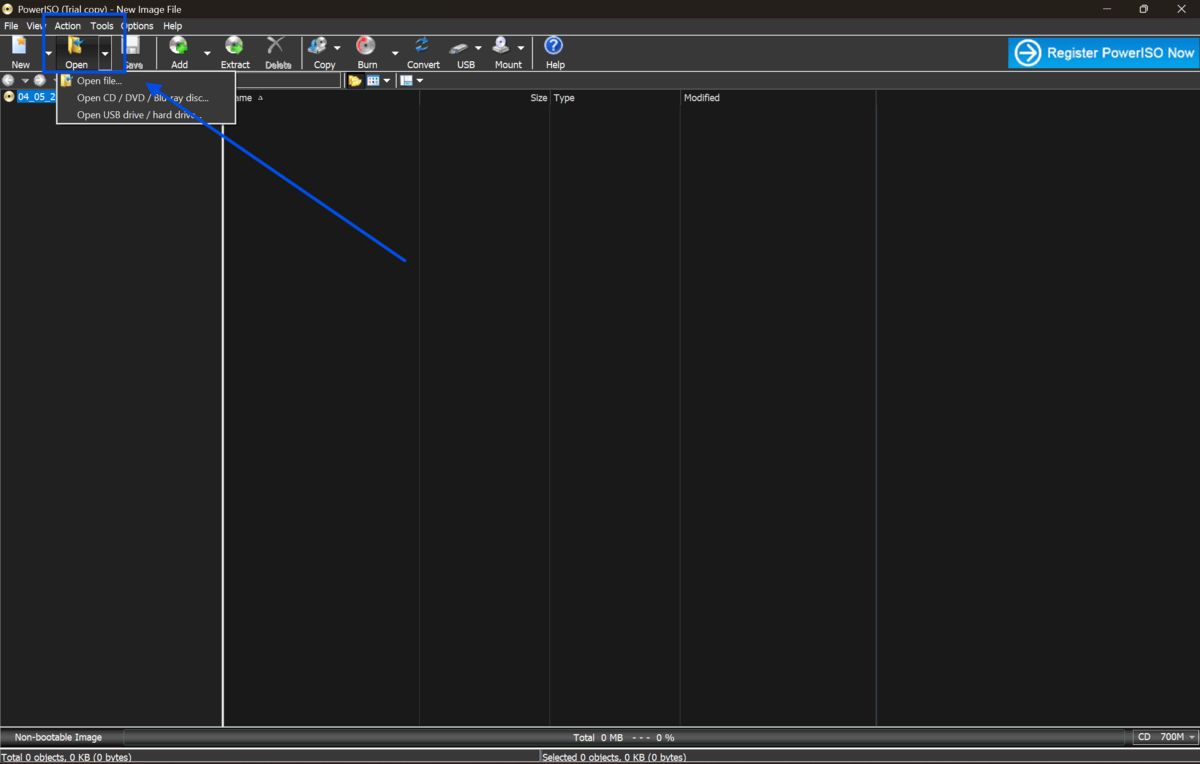
Click "Open" in the toolbar, or go to File> Open. Browse to the location where your ISO file is stored on your computer. Select the file and click Open.
-
PowerISO loads the ISO content into its internal browser. You will see the folder and file structure of the image just as it appears on a disc. No files are extracted to your hard drive at this point.
-
Browse the ISO content by double-clicking folders to navigate inside. The file tree on the left panel helps you move through directories quickly. You can see file names, sizes, and types on the main panel.
-
To add a new file, click the "Add" button in the toolbar. A file selection window opens. Browse to the file you want to include, select it, and click Open. The file is added to the ISO without extracting the rest of the content.
-
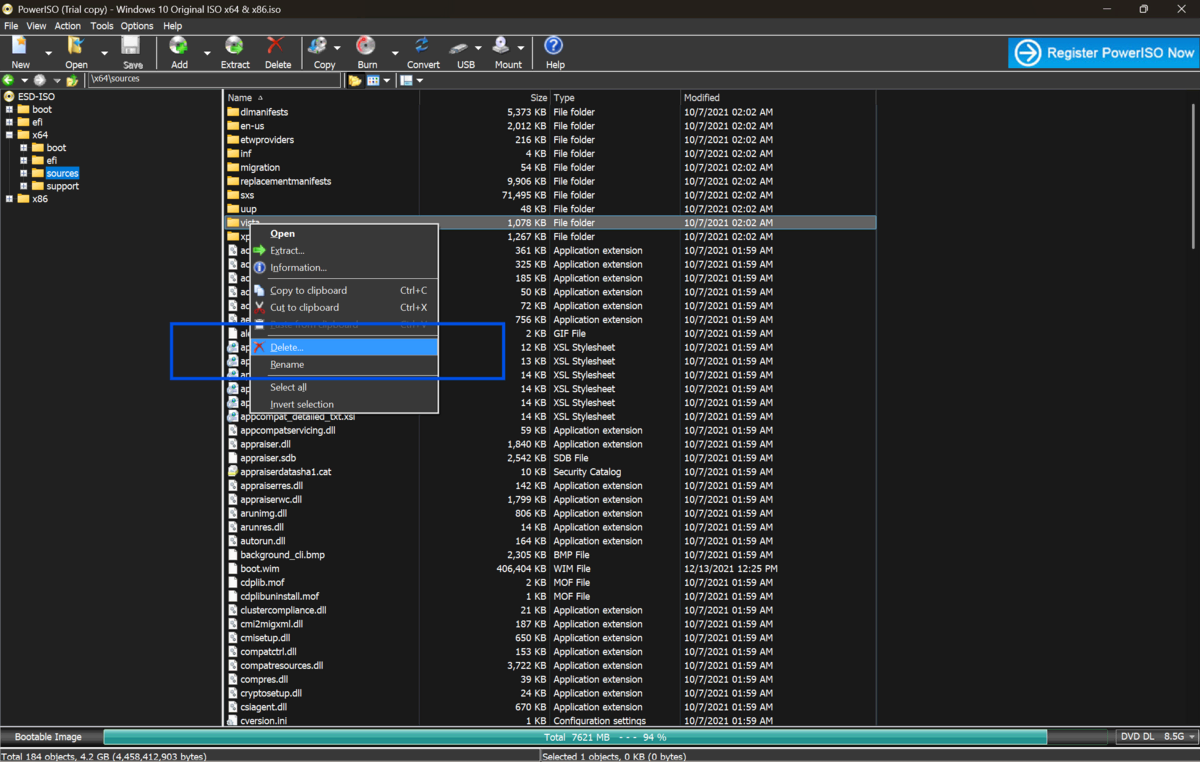
To delete a file from the ISO, select it in the browser panel, then press the Delete key on your keyboard or right-click and choose Delete. PowerISO marks it for removal, but has not written the change yet.
-
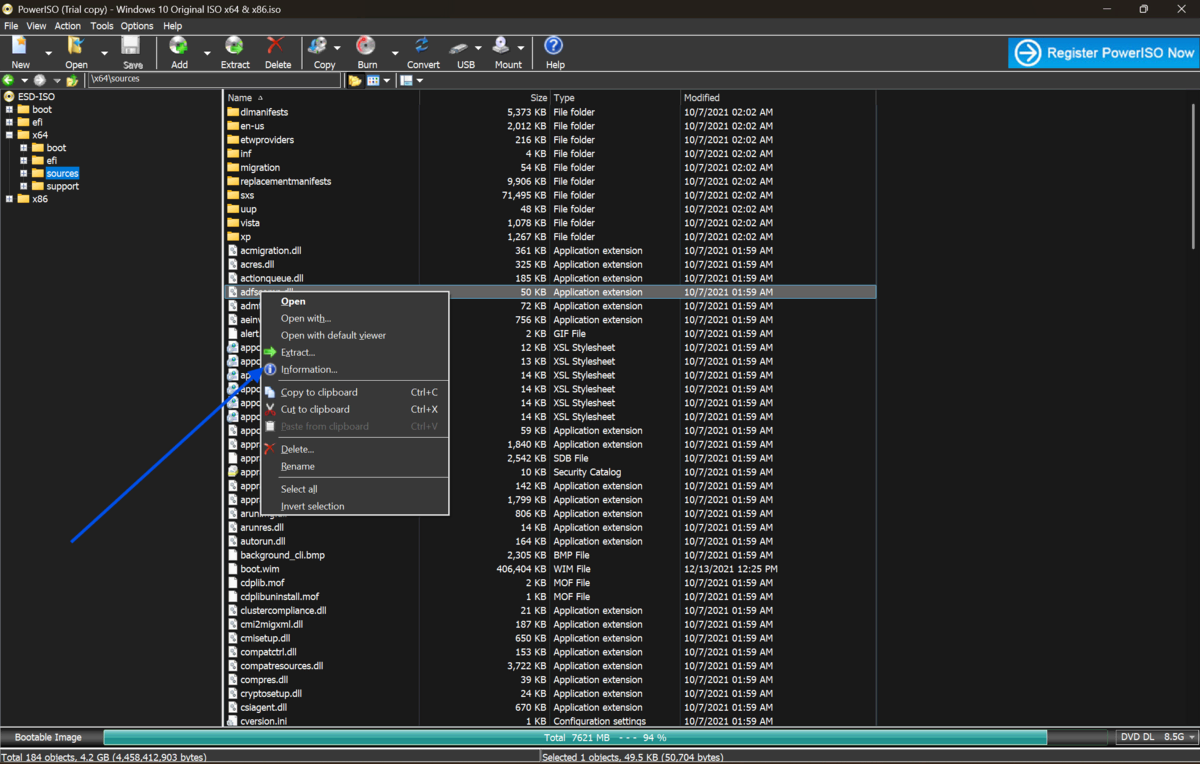
To replace an existing file, right-click it and select "Properties," or simply delete the old file and add the updated version in the same folder path. Keep file names identical if the ISO relies on specific paths to function correctly.
-
To rename a file or folder inside the ISO, right-click the item and choose Rename. Type the new name and press Enter. This is useful when adjusting boot files or config paths inside system images.
-
To move files between folders inside the ISO, drag and drop them from one directory to another within the PowerISO browser. This works the same way as moving files in Windows Explorer.
-
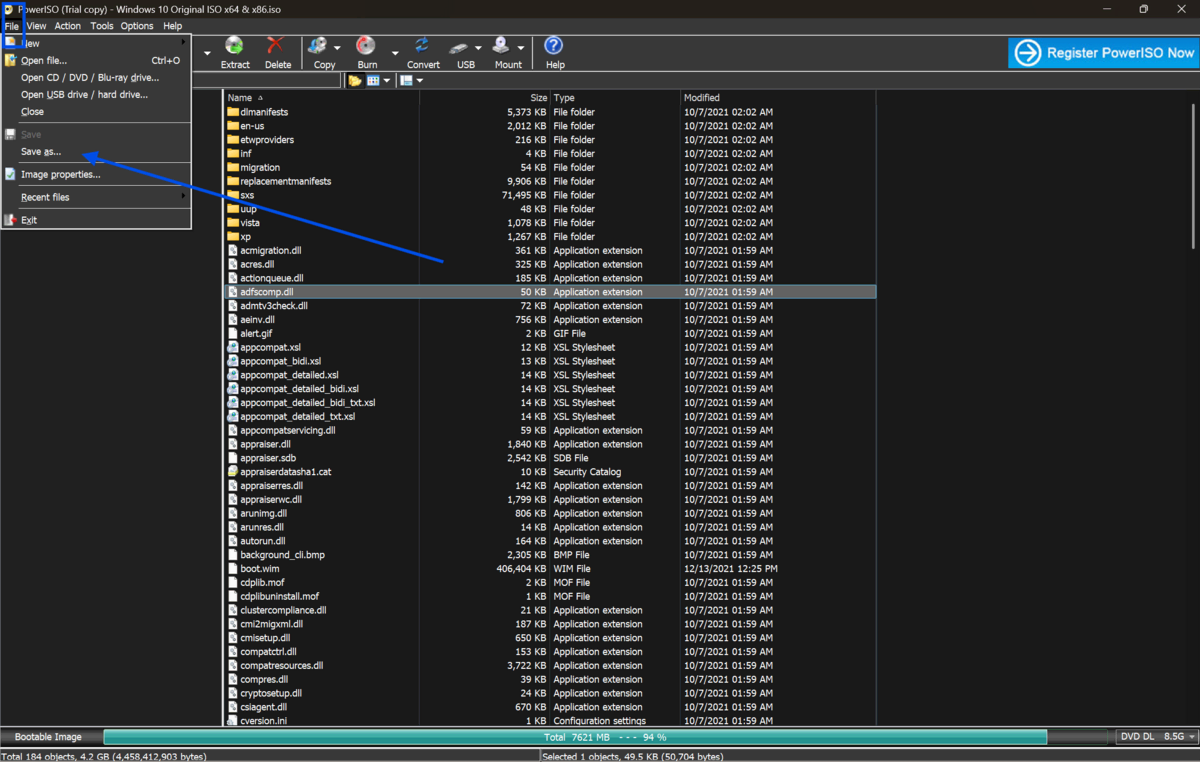
Once all edits are complete, click "Save" from the toolbar or go to File and then Save. If you want to keep the original unchanged, choose "Save As" and give the edited file a new name or save it to a different folder.
-
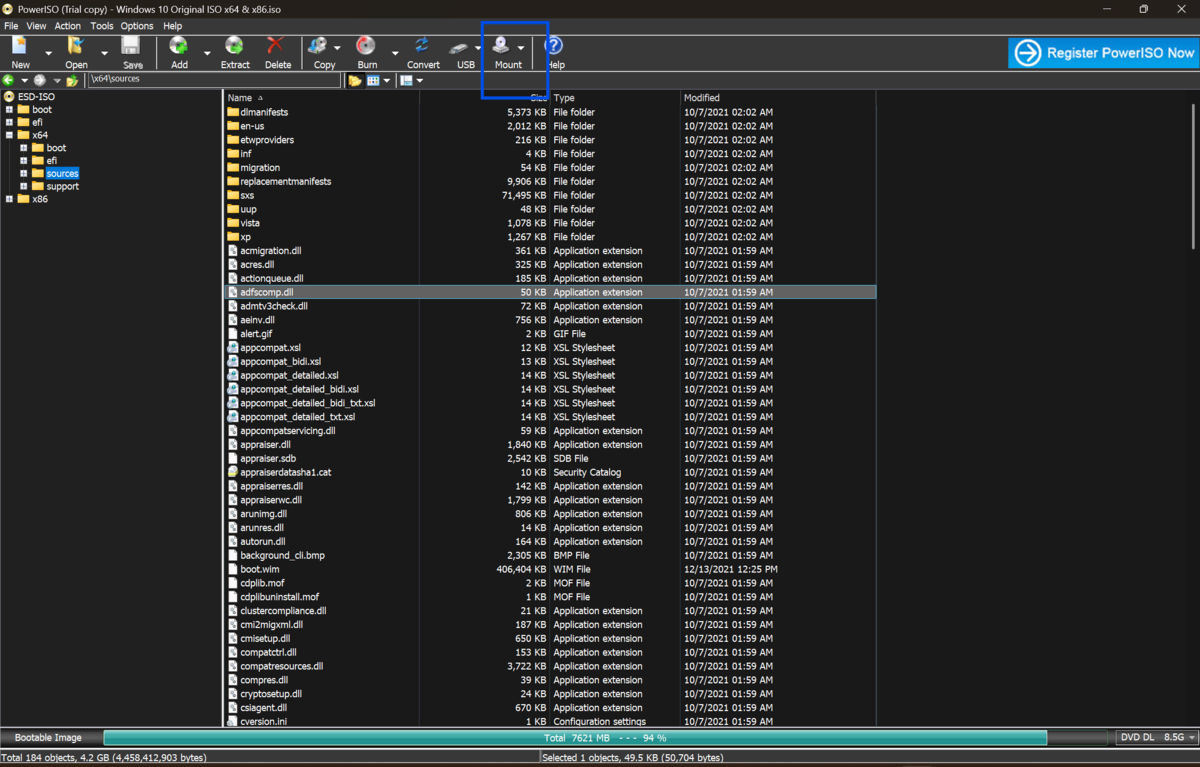
Verify your changes by reopening the saved ISO in PowerISO or mounting it as a virtual drive using the built-in mount feature. Check that all added, removed, or renamed files appear correctly before using the image.
Quick Tips
-
Always work on a copy of your original ISO. Keep the unedited version in a backup folder before making any changes. This prevents data loss if something goes wrong.
-
Use the "Find" feature in PowerISO to locate specific files inside large ISO images quickly. This is far faster than scrolling through hundreds of nested folders manually.
-
If you are editing a bootable ISO, such as a Windows installer or Linux live disc, never delete or rename the boot sector files. These include files like bootmgr, boot.wim, or isolinux.bin, depending on the operating system.
Common Mistakes to Avoid
-
PowerISO supports multiple output formats. If you accidentally save it as DAA instead of ISO, some tools will not recognize the file. Always confirm the output format in the Save As dialog before clicking Save.
-
PowerISO does not auto-save. If you close the application after making changes without clicking Save, all edits are lost. Make it a habit to save after each significant change.
-
Some ISO formats have file size limits. If you add a file larger than the format allows, PowerISO will show an error or silently fail. Check the total size of your ISO before and after adding large files.
Pricing and Availability
PowerISO is available for Windows. It offers a free version with some limitations, including a restriction on creating ISO files larger than 300MB. The registered version requires a one-time license purchase.
As of the latest available information, a personal license for PowerISO starts at around $39.95 USD for a single user. The license covers all future updates of the same major version.
Final Verdict
PowerISO is one of the most practical tools for anyone who regularly works with disk image files. It removes the biggest pain point of ISO editing, which is the need to extract, modify, and repackage everything just to change a single file.
It is best suited for IT professionals, developers, system builders, and advanced users who handle bootable images, software archives, or installation media. Beginners will also find it approachable thanks to its familiar file-browser interface.
If you need to edit ISO files efficiently, without wasting storage or time, PowerISO is a reliable and proven choice. Download PowerISO from our site today and start editing your ISO files in minutes.
FAQs
Can I edit an ISO file without extracting it using PowerISO?
Yes. PowerISO lets you open any ISO file and modify its contents directly inside the program. You can add, delete, rename, and replace files without extracting the ISO to your hard drive.
Does PowerISO support bootable ISO files?
Yes. PowerISO can open and edit bootable ISO images. However, you should avoid modifying or deleting boot sector files such as bootmgr or isolinux.bin, as these are required for the disc to boot correctly.
Is PowerISO free to use?
PowerISO offers a free trial version with limited functionality. The full version requires a one-time license purchase. The trial is enough to test ISO editing features before committing to a purchase.
What file formats does PowerISO support?
PowerISO supports ISO, BIN, NRG, IMG, DAA, CDI, XA, DSK, and several other disk image formats. It can also convert between many of these formats directly from within the application.
What is the difference between saving and saving as in PowerISO?
Clicking Save overwrites the currently open ISO file with your changes. Save As lets you create a new file with a different name or location, keeping the original ISO untouched. Always use Save As when you want to preserve the original.
Comments
Let us know about your thoughts
Explore more articles related to PowerISO
Here you will find all the latest tips and tricks about PowerISO . Also you will get many solution of problems which you may face while using this app.
Published at: Mar 17, 2026
How to Compress ISO Files Using PowerISO
You just downloaded a massive ISO file. It's eating up your storage. And you need...
Published at: Apr 12, 2026
How to Edit ISO Files Without Extracting Them in PowerISO
You have an ISO file. You need to change one file inside it. But you do...
Published at: Apr 12, 2026
How to Mount ISO Files Using PowerISO
You downloaded a game, software installer, or operating system image. The file ends in .iso. Now...

Published at: Apr 17, 2026
How to Extract ISO Files Using PowerISO Without Errors
You downloaded an ISO file. Now what? Most users stare at the iso file and...

Published at: Apr 18, 2026
How to Convert BIN to ISO Using PowerISO
You have a BIN file on your desktop. You try to mount it. Nothing works. Sound...

Published at: Apr 20, 2026
How to Burn ISO to USB or DVD Using PowerISO
You just downloaded an ISO file. Maybe it is a Windows installer, a Linux distro,...


Mount. Burn. Done.
PowerISO is a safe and powerful ISO toolkit that lets you open, edit, compress, and mount disc image files with ease. From creating bootable USBs to backing up old CDs or running virtual drives, it handles it all. Simple yet feature-rich, it’s the go-to choice for managing ISO files.