How to Burn ISO to USB or DVD Using PowerISO


Asif Mohammad Sovon
Asif Mohammad Sovon, IT Assistant at Bangladesh Air Force and Fileion tech writer, simplifies tech t...
Step-by-Step Guide: How to Burn ISO to USB or DVD Using PowerISO
Can PowerISO create a bootable USB from any ISO file?
Does PowerISO work on Windows 11?
Is the free version of PowerISO enough for burning ISO files?
How long does it take to burn an ISO to a USB using PowerISO?
What should I do if the bootable USB created by PowerISO does not boot?
You just downloaded an ISO file. Maybe it is a Windows installer, a Linux distro, or a recovery image. Now you are staring at it, wondering what to do next. You cannot just drag it onto a USB drive and call it done. That will not work.
This is exactly where most beginners get stuck, and it is completely normal.
To actually use an ISO file, you need to burn it properly to a USB drive or DVD. That means writing the image in a way the system can read and boot from it. The right tool makes this process fast, clean, and error-free.
PowerISO is one of the most reliable tools for this job on Windows. It has been around for years and handles ISO burning without unnecessary complexity.
In this guide, you will learn how to burn an ISO file to a USB or DVD using PowerISO, step by step, from download to done. Let's dive into the basics before moving to the hands-on steps.
What is PowerISO?
PowerISO is a Windows-based disk image utility. In plain terms, it lets you work with ISO files and other image formats without needing multiple tools.
You can create, edit, compress, encrypt, mount, and burn image files, all from one place. It supports over 30 image formats, including ISO, BIN, NRG, IMG, and DAA.
Who uses it? Students setting up bootable OS environments, IT professionals deploying system images, developers testing builds, and everyday users who need to create a bootable USB or backup DVD. If you regularly work with ISO files, PowerISO is a practical tool to have installed.
Key Features and Benefits
-
PowerISO writes bootable ISO images directly to USB drives and DVDs. This is the core feature most users come for.
-
It supports more than 30 image formats. You are not limited to ISO-only files.
-
You can open and edit files inside an ISO before burning it. No need to rebuild the image from scratch.
-
Mount any ISO as a virtual drive to test it before committing to a physical burn. This saves time and media.
-
PowerISO lets you compress large images and add password protection, useful for storing sensitive system images.
-
The tool uses optimized burn algorithms to reduce write time and avoid common disk errors.
Step-by-Step Guide: How to Burn ISO to USB or DVD Using PowerISO
-
Install and Launch: Download PowerISO from a trusted source, install it on your Windows PC, and Run as Administrator by right-clicking the icon to ensure you have the necessary permissions.
-
Prepare Your Media: Insert your blank DVD into the optical drive or plug in your USB drive. Ensure it has at least 8GB of space and that you have backed up any data, as it will be formatted.
-
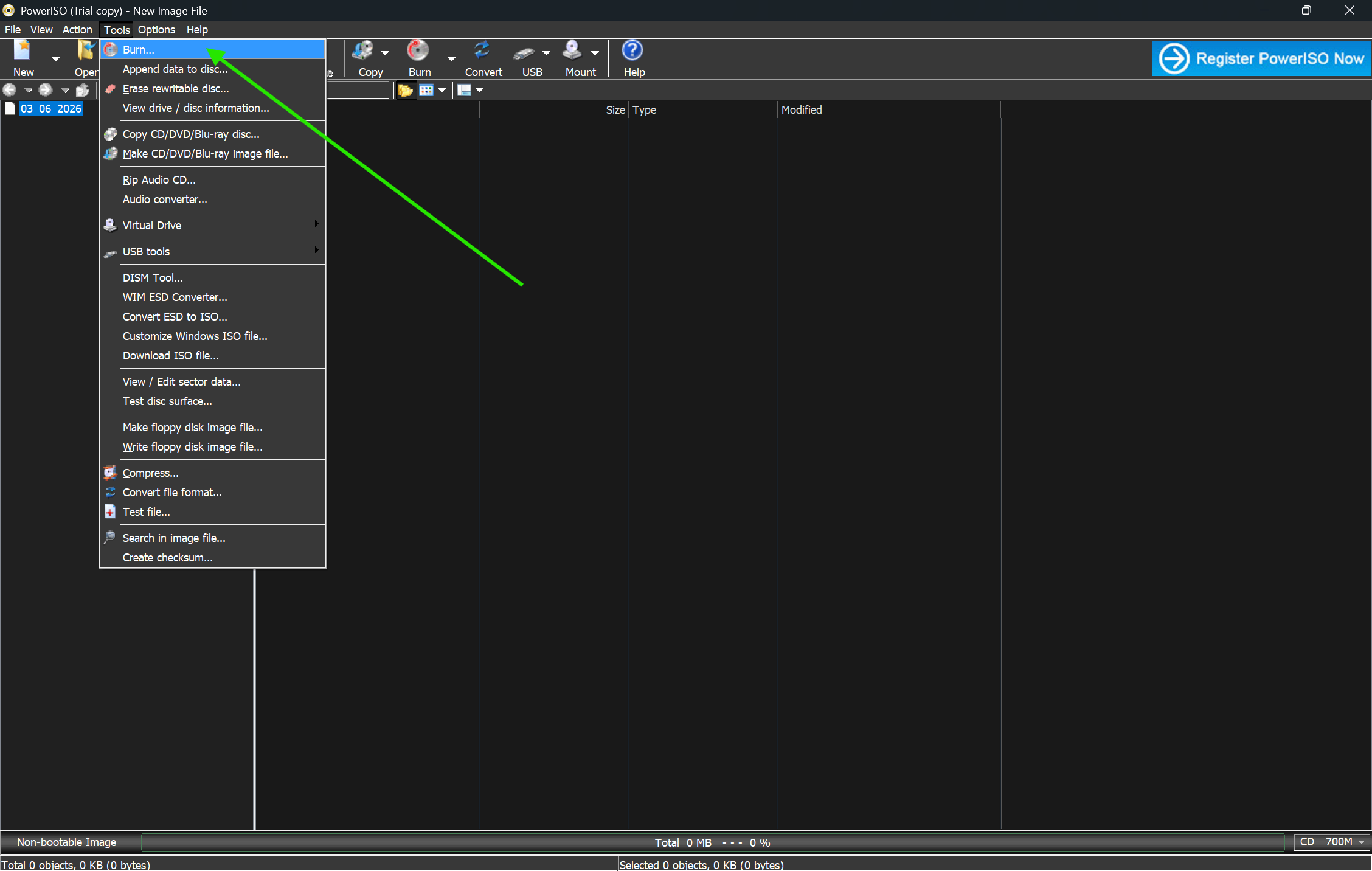
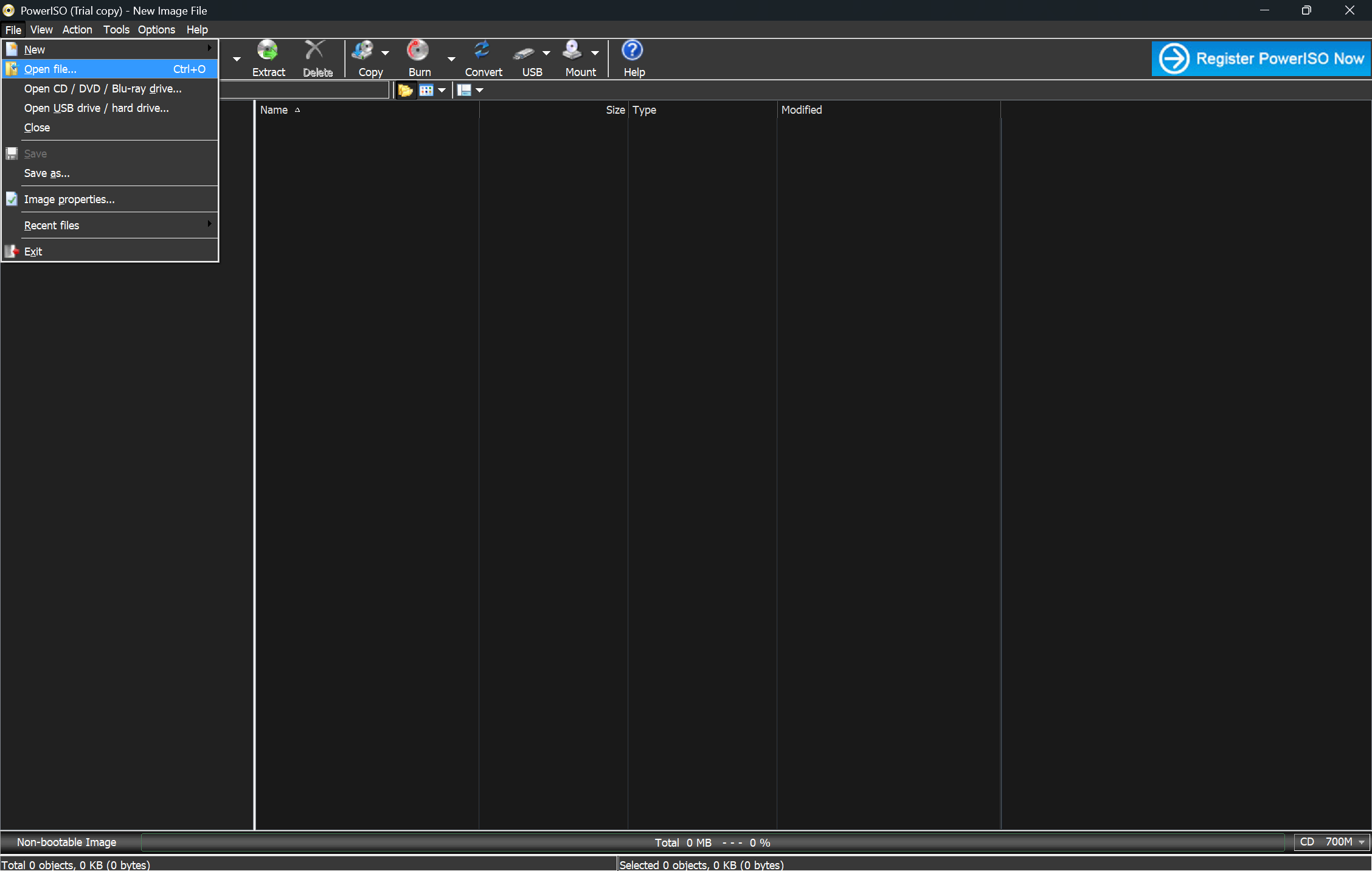
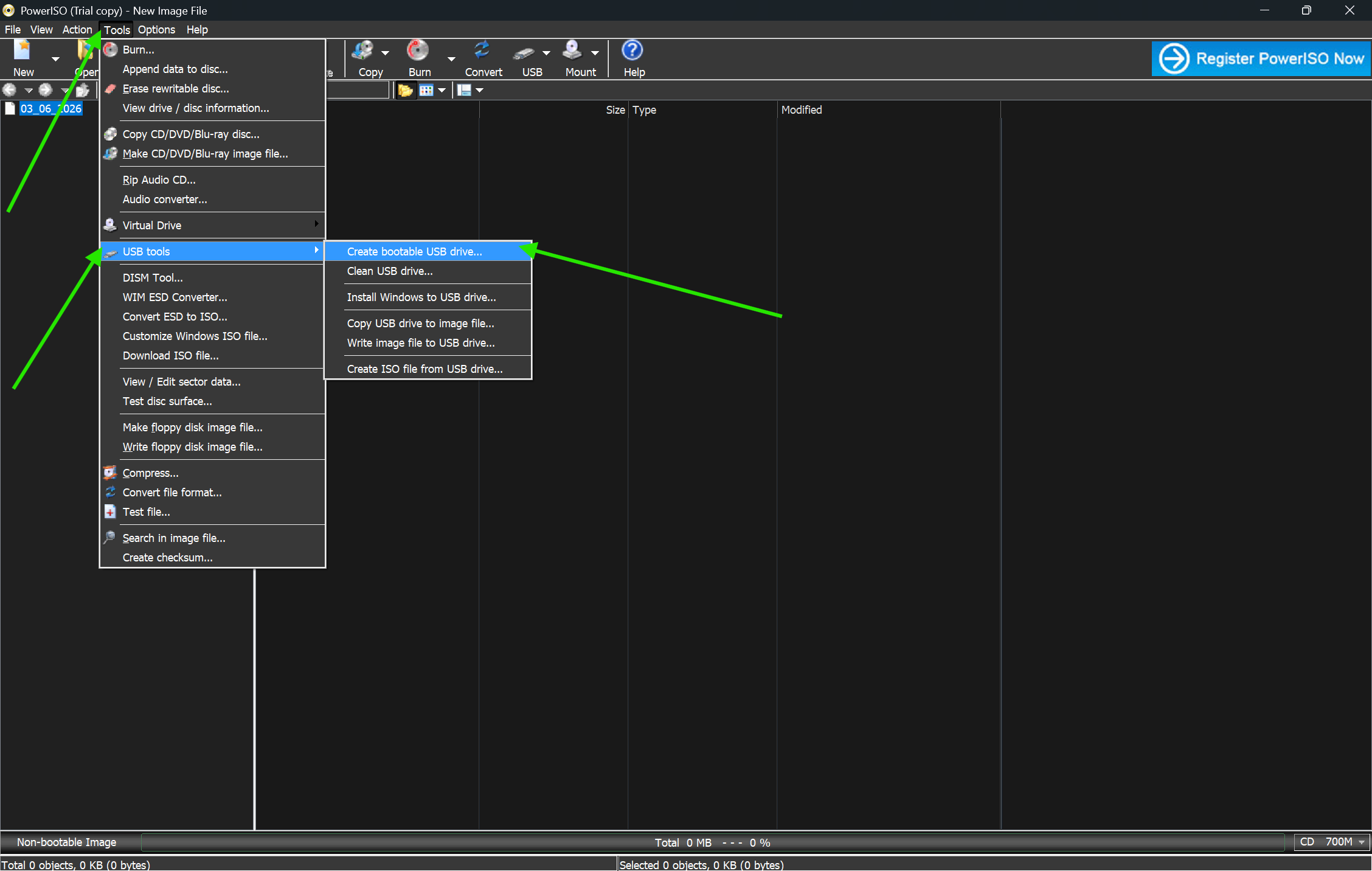
Select the Action: In PowerISO, click on the Tools menu and select Create Bootable USB Drive for USBs, or click File > Open to select your ISO and then click the Burn button for DVDs.
-
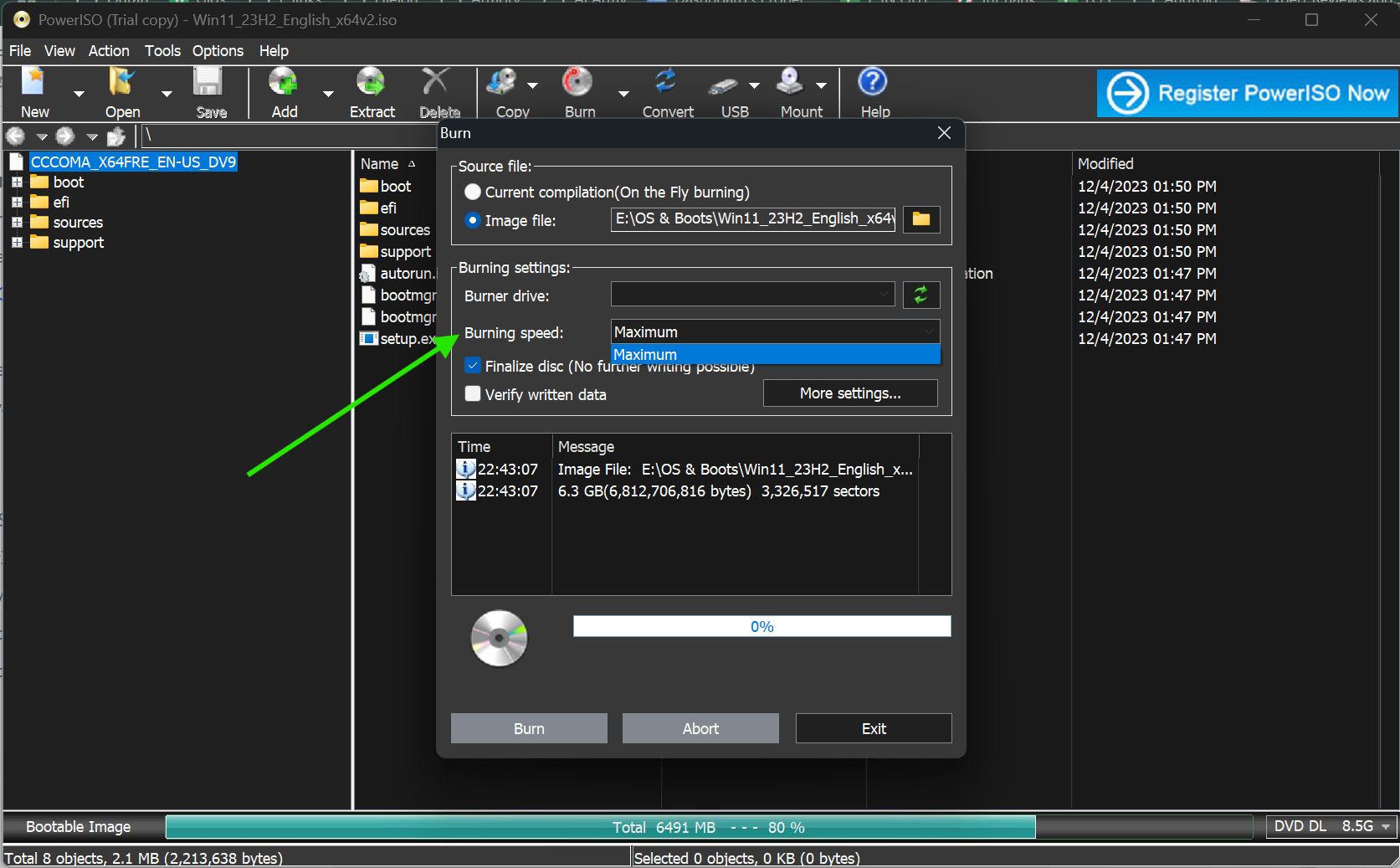
Select the Source ISO: Click the folder icon in the setup dialog to browse your computer and select the specific ISO file you want to burn.
-
Choose the Destination Drive: Use the dropdown menu to select your specific USB drive or DVD writer; double-check this to avoid accidentally wiping the wrong storage device.
-
Configure Write Settings: For USBs, set the Write Method to USB-HDD+; for DVDs, set the burn speed to 4x or 8x to ensure better reliability and fewer errors.
-
Start the Process: Click the Start button for USB or the Burn button for DVD to begin writing the data.
-
Confirm Formatting: If prompted with a warning that all data on the drive will be overwritten, click OK to proceed with the format and installation.
-
Monitor Progress: Wait for the progress bar to reach 100%; this typically takes between 2 and 5 minutes, depending on the file size and hardware speed.
-
Finalize and Test: Once the "Successful" message appears, safely eject your media or restart your PC and enter the BIOS/Boot Menu (usually F12, F2, or Del) to test that your new bootable drive works.
Quick Tips
-
Always run PowerISO as Administrator when burning bootable USB drives. It avoids most permission-related failures silently.
-
Use a USB 3.0 drive if possible. It writes faster and performs better during boot compared to older USB 2.0 drives.
-
Verify the ISO hash before burning. Download the MD5 or SHA-256 checksum from the source and compare it using Windows PowerShell or a free tool like HashCheck. A mismatched hash means a corrupted download.
-
Do not use your PC heavily during a DVD burn. Writing to optical media requires consistent CPU and disk access. Running other apps in the background increases the risk of buffer underruns.
-
Mount before you burn. Use PowerISO's virtual drive feature to open and test the ISO first. This confirms the image contains the right files before you waste a blank DVD.
Common Mistakes to Avoid
-
PowerISO lists all connected drives. If you have external hard drives or other USB devices plugged in, it is easy to pick the wrong one. Always double-check the drive letter and storage size before clicking Start.
-
Cheap or damaged optical discs cause mid-burn errors. Use name-brand discs and inspect them if the bootable USB or DVD does not load after burning. It is often a BIOS issue, not a PowerISO issue. Make sure Secure Boot is disabled, and Legacy Boot or UEFI is configured correctly for your image type.
-
Rushing past verification means you might not find out the burn failed until you actually try to boot. Turn on verification. It adds a couple of extra minutes but saves much more time in the long run.
Pricing and Availability
PowerISO offers a free trial version for Windows. The trial has a file size limitation of 300 MB for created images and adds a watermark to burned files. For full functionality without restrictions, a paid personal license is available.
A single-user license for PowerISO is priced at $39.95 (one-time purchase) as of the latest pricing information from the official website. This covers all future updates within the same major version.
You can download the free trial or purchase a license directly from Fileion.
Final Verdict
If you regularly work with ISO files, PowerISO is a practical and dependable tool. It covers the full lifecycle of a disk image, from creating and editing to mounting and burning, without switching between multiple apps.
It is a solid choice for IT professionals, students, and any Windows user who needs a reliable way to create bootable USB drives or burn DVDs. The interface is not flashy, but it is functional and consistent.
FAQs
Can PowerISO create a bootable USB from any ISO file?
PowerISO can create a bootable USB from most ISO images, including Windows, Linux, and other OS installers. However, the result depends on the ISO itself. If the source image is not designed to be bootable, the USB will not boot regardless of the tool used.
Does PowerISO work on Windows 11?
Yes. PowerISO is compatible with Windows 11, as well as Windows 10, 8, and 7. There is no separate version needed for Windows 11. The same installer works across all supported versions.
Is the free version of PowerISO enough for burning ISO files?
The free version works for burning, but it limits image creation to files under 300 MB and adds a watermark to create images. For simply burning an existing ISO to USB or DVD, the trial version functions adequately in most scenarios, though a license removes all restrictions.
How long does it take to burn an ISO to a USB using PowerISO?
Burn time depends on the size of the ISO and the write speed of your USB drive. A typical 5 GB Windows ISO usually takes between three and eight minutes on a USB 3.0 drive. Slower USB 2.0 drives can take significantly longer.
What should I do if the bootable USB created by PowerISO does not boot?
First, check your BIOS boot order and make sure the USB drive is set as the primary boot device. If it still does not boot, try changing the Write Method inside PowerISO from USB-HDD+ to USB-HDD or USB-ZIP and repeat the burn. Also, verify the original ISO file is not corrupted by checking its hash value.
Comments
Let us know about your thoughts
Explore more articles related to PowerISO
Here you will find all the latest tips and tricks about PowerISO . Also you will get many solution of problems which you may face while using this app.
Published at: Mar 17, 2026
How to Compress ISO Files Using PowerISO
You just downloaded a massive ISO file. It's eating up your storage. And you need...
Published at: Apr 12, 2026
How to Edit ISO Files Without Extracting Them in PowerISO
You have an ISO file. You need to change one file inside it. But you do...
Published at: Apr 12, 2026
How to Mount ISO Files Using PowerISO
You downloaded a game, software installer, or operating system image. The file ends in .iso. Now...

Published at: Apr 17, 2026
How to Extract ISO Files Using PowerISO Without Errors
You downloaded an ISO file. Now what? Most users stare at the iso file and...

Published at: Apr 18, 2026
How to Convert BIN to ISO Using PowerISO
You have a BIN file on your desktop. You try to mount it. Nothing works. Sound...
Published at: Apr 20, 2026
How to Burn ISO to USB or DVD Using PowerISO
You just downloaded an ISO file. Maybe it is a Windows installer, a Linux distro,...


Mount. Burn. Done.
PowerISO is a safe and powerful ISO toolkit that lets you open, edit, compress, and mount disc image files with ease. From creating bootable USBs to backing up old CDs or running virtual drives, it handles it all. Simple yet feature-rich, it’s the go-to choice for managing ISO files.