PowerISO for Windows Description
PowerISO for Windows is the most polished, complete, and user-friendly version of the tool. It lets you open, edit, compress, encrypt, and burn ISO and other disc image formats in just a few clicks. From creating bootable USB drives to ripping audio CDs, the Windows version truly acts as a one-stop shop for all your disc management needs. Its clean, old-school interface keeps everything simple and familiar for both beginners and power users.
Key Features
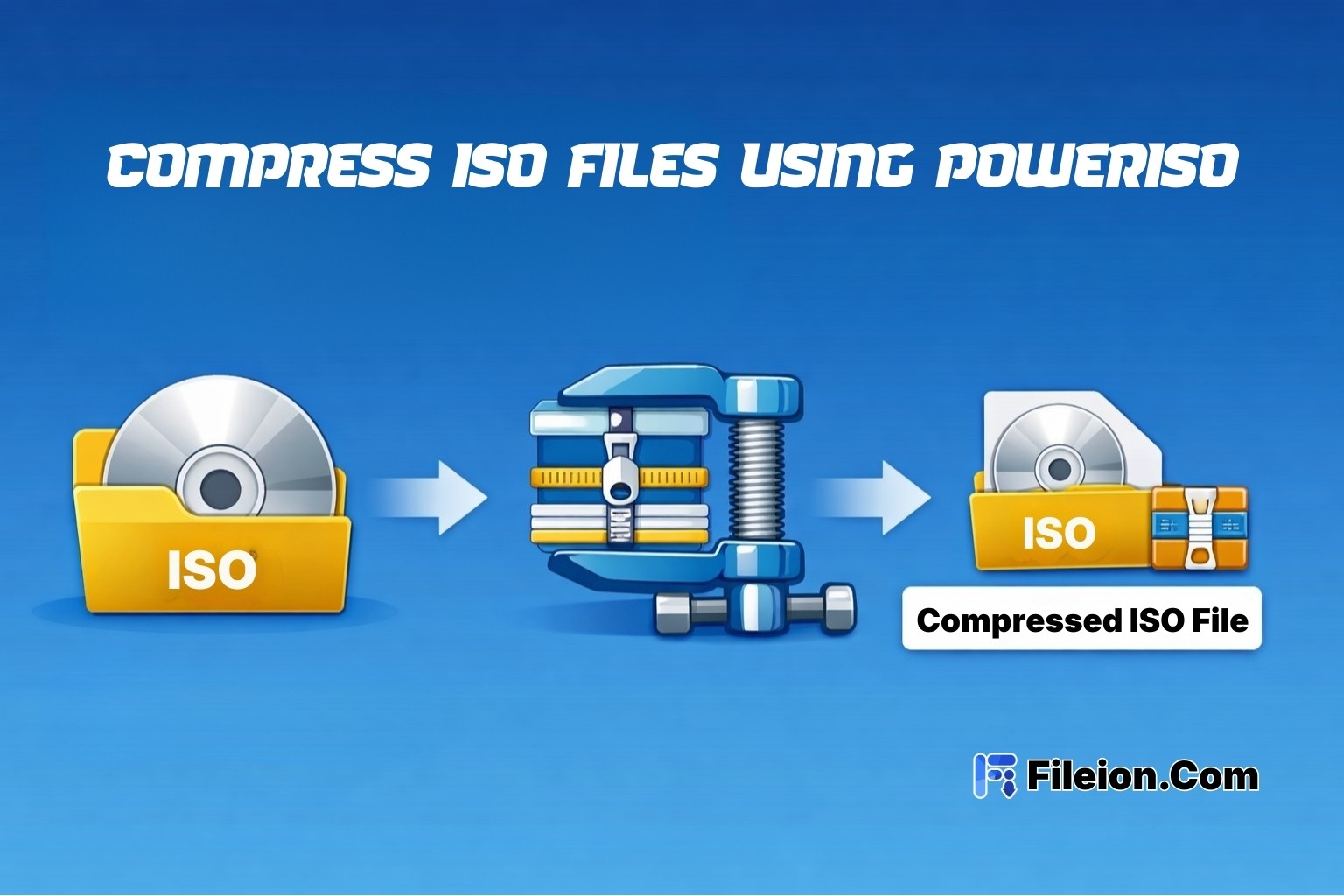
PowerISO on Windows supports multiple virtual drives, file format conversion (BIN, NRG, DAA to ISO), ISO compression, encryption, and password protection. It’s also a favorite among PC users for creating bootable USB drives for Windows installation or cloning discs for backups. Integrated audio CD ripping and direct disc burning make it a true all-in-one suite.
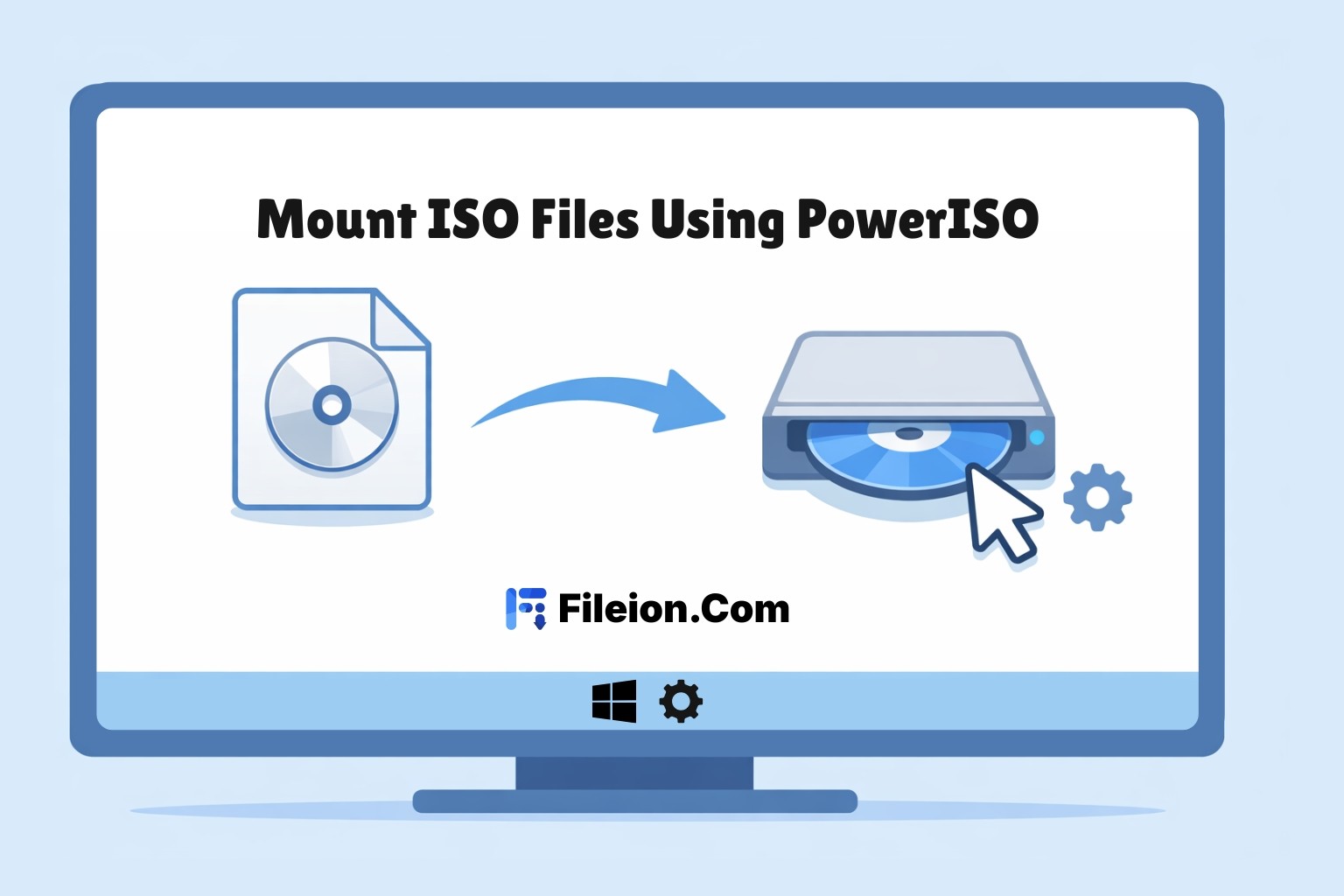
Better yet, it blends seamlessly into Windows Explorer — you can right-click an image to mount, extract, or burn instantly. For tech-savvy users, the command-line support and multi-session burning provide automation and control that go beyond typical GUI software.
Usability & Performance
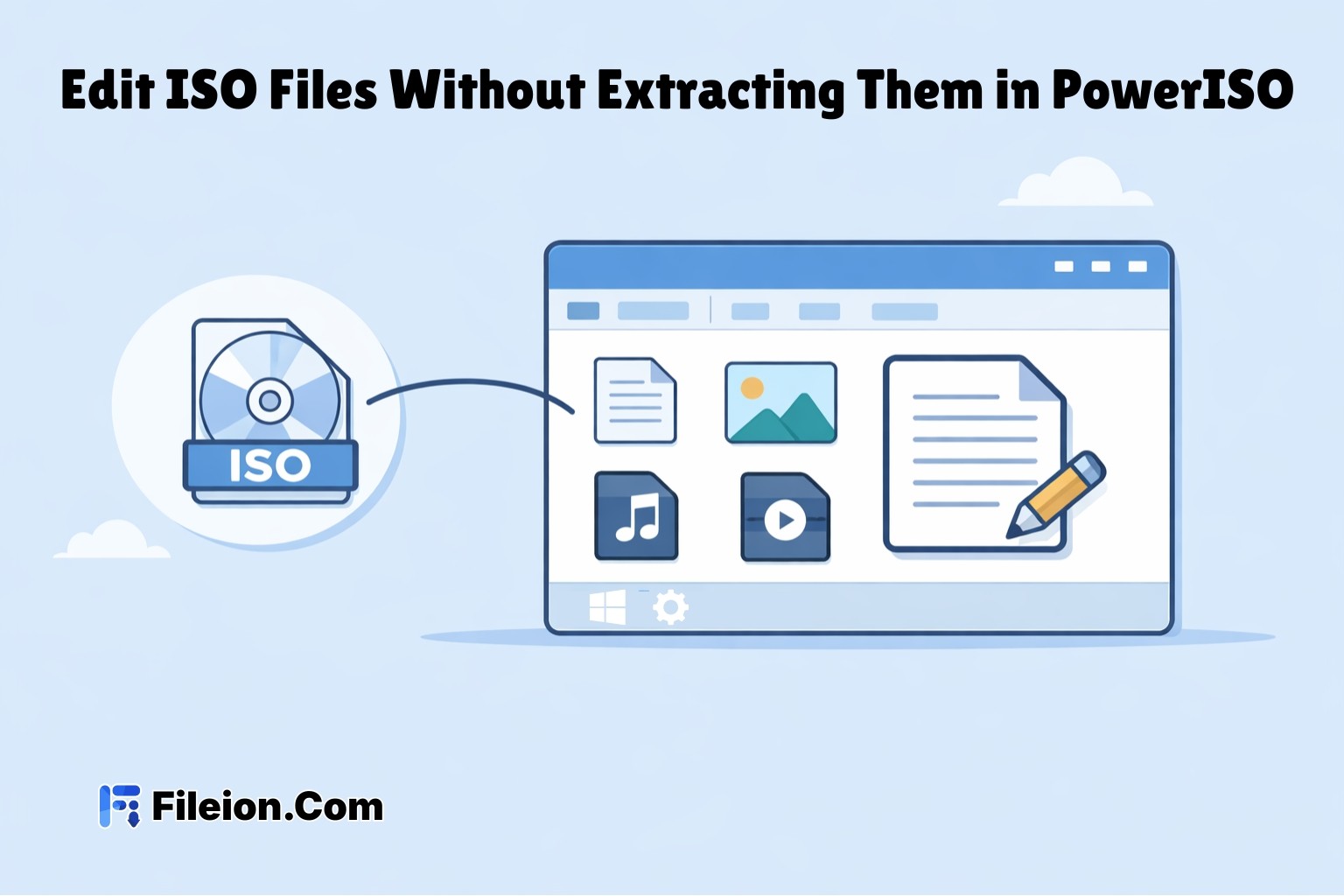
This version runs fast and smoothly. Mounting or editing large ISOs happens within seconds, and multi-drive setups perform without hiccups. Even on older machines, it maintains stability and reliability. The interface may feel a little dated, but its simplicity makes every task — from creating bootable drives to compressing large ISOs — clear and intuitive.
New users might need a few minutes to explore all menus, but once familiar, it’s effortless. Every feature is logically placed, so productivity stays high without confusion or clutter.
Cross-Platform Comparison
Here’s the honest truth: the biggest difference between PowerISO on Windows and its macOS or Linux versions is the interface. Windows users get the full graphical user interface (GUI) with drag-and-drop convenience, while macOS and Linux versions only offer command-line tools with limited features.
The Windows edition also gets regular updates, smoother performance, and exclusive tools like Explorer integration and bootable USB creation. On macOS and Linux, you can mount or burn files — but you’ll miss advanced options like format conversion, encryption, and multi-drive mounting. Simply put, PowerISO feels at home on Windows.
Conclusion
If you want the most powerful, stable, and complete PowerISO experience, Windows is the clear winner. It’s fast, reliable, and packed with tools for both casual and advanced users. Whether you’re burning discs, backing up data, or setting up bootable drives, PowerISO for Windows covers it all.
For a safe, clean version — download it from Fileion, where you’ll also find installation guides, feature overviews, and trusted reviews before you install.