PowerISO is a safe and powerful ISO toolkit that lets you open, edit, compress, and mount disc image files with ease. From creating bootable USBs to backing up old CDs or running virtual drives, it handles it all. Simple yet feature-rich, it’s the go-to choice for managing ISO files.
Ever tried downloading an old game or a Windows installer, only to find the file ends in .ISO and your computer stares back at you like, “Good luck, buddy”? That’s where tools like PowerISO jump in. It’s been around for ages, helping users crack open, mount, and manage ISO files like it’s no big deal. But the real question is—is PowerISO still safe and useful today, or has it become outdated compared to newer tools? Let’s break it down.
What Is PowerISO?
PowerISO is basically your virtual CD/DVD toolkit. Remember when everything came on discs? This app lets you take those discs, turn them into files, and still use them as if you had the physical copy.
You can:
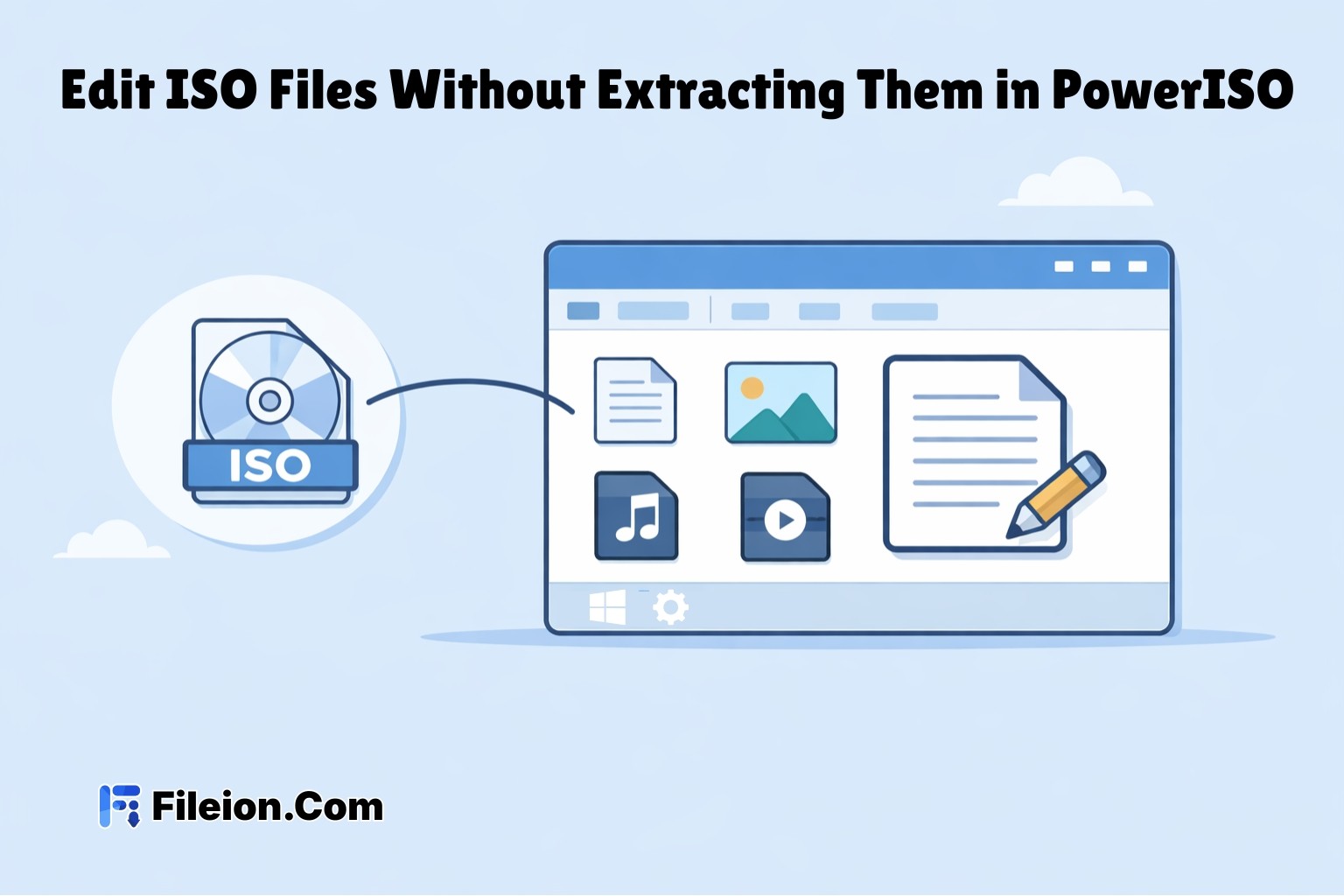
Open ISO files like folders.
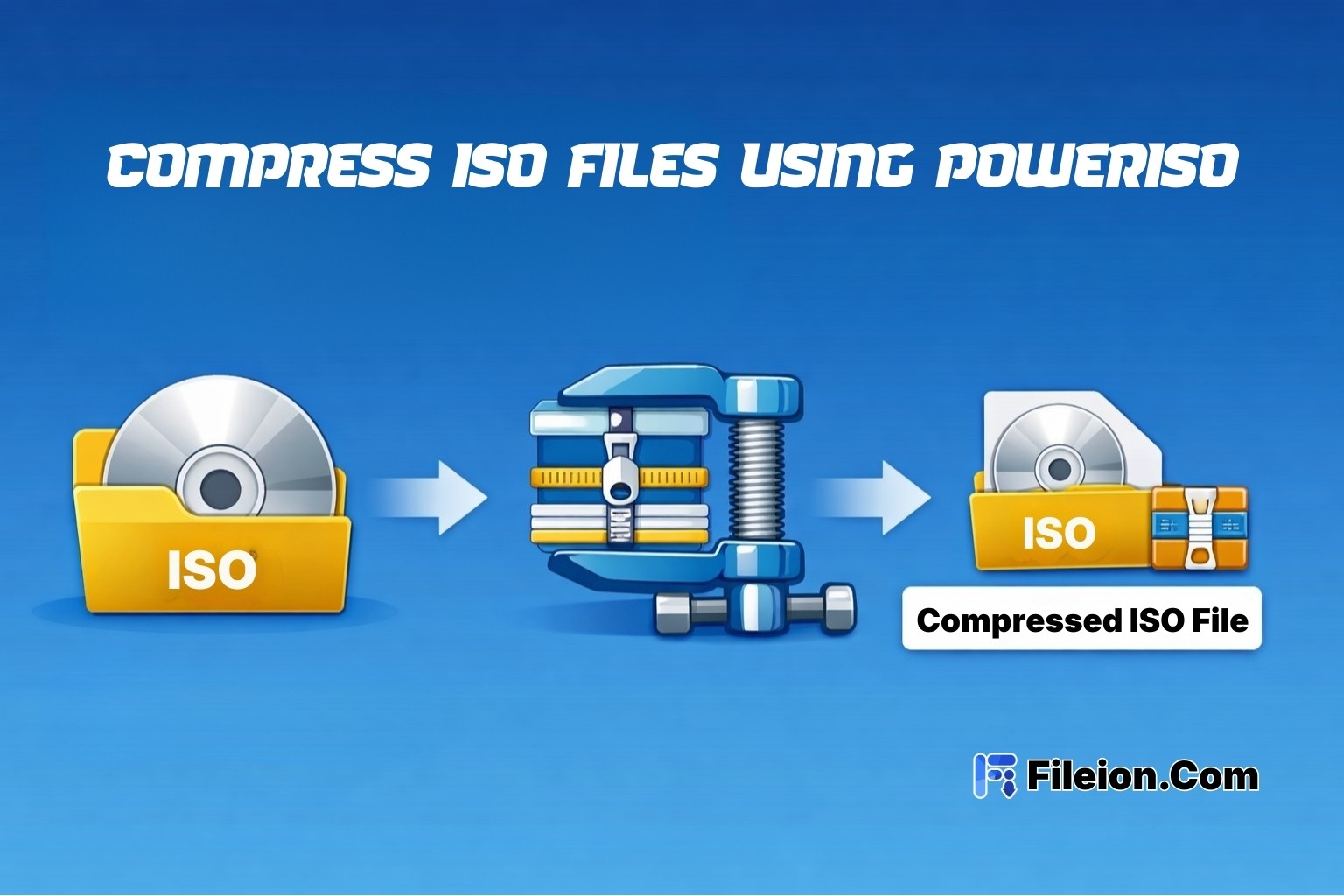
Edit, split, or compress them.
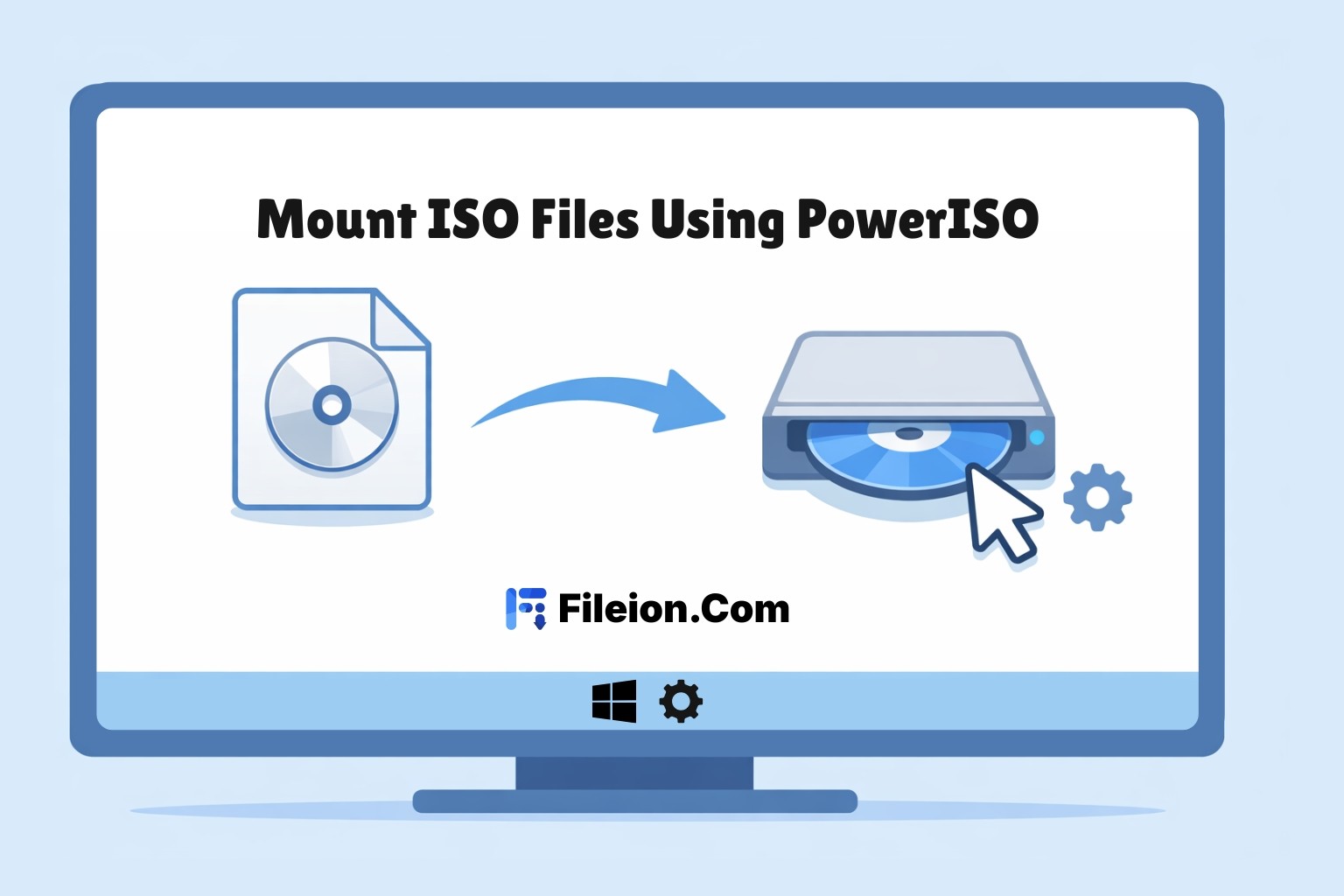
Mount them as virtual drives so your PC thinks you’ve actually inserted a disc.
Think of it like WinRAR but for disc images. Instead of zipping and unzipping, you’re mounting and burning. Simple enough.
User Experience: Easy or Overloaded?
PowerISO definitely feels a bit old-school, but in a comforting way. The toolbar is straightforward, the drag-and-drop mounting works instantly, and menus don’t take a rocket science degree to figure out.
On Windows, it runs the smoothest—it’s been its home turf since the start.
On macOS and Linux, it’s available, but let’s be real—it feels more like a guest than a native resident.
If you’re new, you’ll get the hang of it quickly. If you’re a veteran, it’s like meeting an old friend who still knows the tricks.
What You Can Do With It (Real Life Uses)
Here’s where PowerISO actually shines—everyday uses you’ll recognize:
Install old games or software that still come as ISO files. No disc drive needed.
Create bootable USBs for Windows installations—lifesaver if you’re fixing PCs.
Back up your dusty CDs/DVDs before they stop working forever.
Test operating systems in virtual machines without burning a real disc.
Convert files into ISO so you can organize large collections (movies, programs, backups) neatly.
Mount multiple ISOs at once—great if you’re a gamer running expansions or software packs.
Basically, if discs were part of your past, this tool lets you future-proof them.
Free vs Paid: What’s the Catch?
Free Version: The free version is totally usable—you can mount ISOs, explore them, and even burn small files. But here’s the catch: there’s a size limit (up to 300MB) when creating or editing ISOs. That means if you’re just mounting a game installer, you’re fine. But if you want to back up your 4GB Windows DVD? Not happening.
Paid Version: The premium unlocks everything—no size restrictions, plus full editing, conversion, and advanced features. For around $29.95 (one-time fee), it’s not bad if you deal with ISO files regularly. Think of it this way: if you’re only mounting a file once every few months, free works. But if you’re installing Windows, managing big backups, or editing ISOs often, the paid version saves you endless frustration.
Cool Features - What We Loved Most
1. Bootable USB Creation
This is hands down one of the best parts of PowerISO. Instead of juggling multiple tools to create a Windows installer, PowerISO just gets it done in a few clicks. We tried it with a Windows 10 ISO, and within minutes, our dusty old USB stick was transformed into a bootable lifesaver. It feels like magic—plug it in, reboot, and boom—Windows setup starts.
2. ISO Editing & Compression
Being able to dive inside an ISO file without extracting it is a blessing. We added a few files, deleted unnecessary extras, and saved it back—smooth as butter. Compression also works nicely; it feels satisfying watching a 5GB ISO shrink down and free up space. It’s like decluttering a room without throwing away the essentials.
3. Mounting Multiple Drives
Ever had software that annoyingly asks for “Disc 2” or “Disc 3” mid-install? With PowerISO, you can mount multiple discs at once, making it feel like your PC suddenly grew extra DVD drives. No disc swapping, no hassle—just click and go.
4. Format Conversion (ISO, BIN, NRG, DAA)
Not every file you download is in the friendly ISO format. Some come in BIN, NRG, or the weird DAA (which PowerISO itself popularized). Thankfully, it converts them all into ISO with ease. We loved not having to hunt for random niche tools—this one handled them all.
5. Audio CD Ripping
If you still have music CDs lying around, this feature is gold. We ripped an old album to MP3, and within minutes, it was ready to sync with Spotify or phone playlists. It’s nostalgic, yet practical—it brings your old-school music into the streaming age.
6. Integration with Windows Explorer
The right-click options are a time saver. You don’t even have to open the main program. Just right-click an ISO → mount, burn, or extract. It feels like PowerISO quietly upgraded Windows itself.
7. Disc Burning & Copying
We tested burning a data disc and even cloning an old DVD. It worked smoothly, no coaster discs wasted. For people who still deal with physical media (looking at IT admins and retro gamers), this feature keeps you covered.
8. Create Virtual Drives on Startup
You can set PowerISO to auto-mount ISOs every time Windows boots. We loved this for testing software—no more remounting the same file again and again. It feels like having a permanent virtual drive ready at all times.
9. Password Protection & Encryption
You can password-protect ISOs to keep files private. We liked this especially for work documents—it felt secure knowing no one could peek inside without the key.
What Could Be Better?
1. Installer Transparency
Like we mentioned earlier, the installer sometimes offers extra software. Even if you can skip it, it feels like a sneaky move. We’d prefer a 100% clean installation, without the “click carefully or you’ll install junk” moment.
2. Occasional Lag with Large Files
Handling a 2GB ISO? Smooth. Handling a 10GB one? It hesitated, sometimes froze for a few seconds. Not a dealbreaker, but if you’re working with massive Blu-ray ISOs, it can get frustrating waiting for it to catch up.
3. Outdated Look
PowerISO hasn’t had a major design refresh in ages. It looks like something straight out of the Windows XP era—gray menus, chunky icons. Functionally fine, but when you compare it with slicker rivals like Daemon Tools or even Windows’ own UI, it feels tired.
4. Paid Wall for Bigger ISOs
The free version’s 300MB limit is restrictive. It’s okay for small patches or files, but most modern ISOs are gigabytes in size. If you’re serious about using PowerISO, you’re almost forced to pay. While the price is fair, the free version feels more like a demo.
5. Limited Cross-Platform Support
Yes, PowerISO has versions for macOS and Linux—but they don’t feel as optimized. The updates are slower, and some features just don’t work as smoothly as they do on Windows. It sometimes feels like an afterthought.
6. Minimal Cloud Integration
With everything moving to cloud storage these days, it’s surprising that PowerISO doesn’t have built-in features for uploading ISOs to cloud drives or syncing backups directly. You’ll have to do that manually.
7. Learning Curve for Newbies
While basic mounting is simple, features like editing, converting, and creating bootable media may overwhelm first-timers. The interface could benefit from tooltips or a guided mode to make it less intimidating.
Safety Concerns: Let’s Be Honest
Here’s the elephant in the room—is PowerISO safe?
On Reddit’s r/pcmasterracethread, some users reported that Windows Defender flagged the installer. Others mentioned seeing bundled software during installation, which raised eyebrows.
Over on Trustpilotreviews, opinions are mixed. Some users say it worked perfectly fine and has been safe for years. Others complained about the installer trying to push unwanted programs, making them uncomfortable.
Meanwhile, sites like G2 and Capterra paint a calmer picture—reviews here and here highlight its reliability for businesses and tech enthusiasts, with no major safety red flags mentioned.
So, what’s the truth? From our testing, PowerISO itself is safe when downloaded directly from a safe website. The problem is that the installer sometimes bundles optional software, which careless users might accidentally install. It’s not dangerous malware, but it’s annoying and avoidable.
PowerISO vs Alternatives
Compared to Daemon Tools, PowerISO feels lighter but less modern in design. Daemon Tools offers more polish but also more bloat.
Against WinCDEmu, PowerISO has way more features (editing, compression, bootable USBs). But WinCDEmu wins in one area—it’s 100% free and open source, so safety concerns are basically zero.
Windows itself even has basic ISO mounting built in now. If all you need is “double-click to open,” you might not need PowerISO at all. But if you want advanced control, it still beats the built-in tool.
In short: if you’re power-using ISOs daily, PowerISO is still one of the strongest options. If you’re a casual user, the alternatives might serve you better.
Final Verdict: Should You Install It?
PowerISO is like that trusty toolbox in your garage—maybe it looks old, but it still does the job brilliantly.
If you need a powerful ISO manager, it’s a solid pick.
Just be careful during installation—stick to the safe site only.
If you’re nervous about safety or only need something simple, WinCDEmu or Windows’ built-in mounting might be a better fit.
Bottom line: Yes, PowerISO is worth it if you actually need its power. Otherwise, stick with simpler alternatives.
Hi, I’m Ishrat, Junior Content Writer at Fileion. With a strong passion for tech and a background i...
1
Followers
0
Following
Software Content Writer
Hi, I’m Ishrat, Junior Content Writer at Fileion. With a strong passion for tech and a background in SEO, digital content, and web solutions, I craft stories that connect users to the tools they need. At Fileion, I turn complex topics into clear, helpful content, making tech feel simple and accessible for everyone. Let’s write something impactful!
FAQs
Frequently Asked Questions
Yes, it can compress ISO files into DAA format and even split large files into smaller parts for easier storage or sharing.
Yes, you can rip audio CDs into MP3, FLAC, or WAV, preserving quality while converting music for modern devices.
The Windows version supports up to 23 virtual drives simultaneously, ideal for multi-disc games or software packs.
Here you will find all the latest tips and tricks about PowerISO . Also you will get many solution of problems which you may face while using this app.