How to Create an ISO File with PowerISO on Windows – Step-by-Step Guide


Asif Mohammad Sovon
Asif Mohammad Sovon, IT Assistant at Bangladesh Air Force and Fileion tech writer, simplifies tech t...
You have a stack of CDs or DVDs collecting dust. Or maybe you need to package software files into one clean, portable format. Either way, creating an ISO file is the solution.
ISO files are exact digital copies of disc content or file collections. They are compact, easy to share, and work perfectly for backups, virtual machines, or bootable drives. Once you know how to create one, you will use this skill constantly.
PowerISO makes the process fast and beginner-friendly. It runs directly on Windows and handles everything from disc ripping to custom image building.
In this guide, you will learn exactly how to create an ISO file using PowerISO on Windows, from installation to saving your final image.
Let's dive into the basics before moving to the hands-on steps.
What is PowerISO?
PowerISO is a disc image utility for Windows. It lets you create, open, edit, compress, encrypt, and burn ISO files without needing a physical disc.
Students use it to archive course materials. Gamers use it to back up game discs. IT professionals use it to deploy operating systems. Developers use it to bundle software packages.
At its core, PowerISO takes files you already have and wraps them into a single standardized image file. That image can be mounted as a virtual drive, burned to a disc, or stored as a backup for years. Key Features include ISO Creation from Any Source, Built-in Editor, Virtual Drive Support, Compression and Encryption, and Wide Format Support
Step-by-Step Guide: How to Create an ISO File with PowerISO
-
Download PowerISO from Fileion and run the installer. Follow the on-screen prompts and accept the license agreement to complete installation on your Windows PC.
-
Launch PowerISO after installation. The main window opens with a toolbar at the top and a file panel in the center.
-
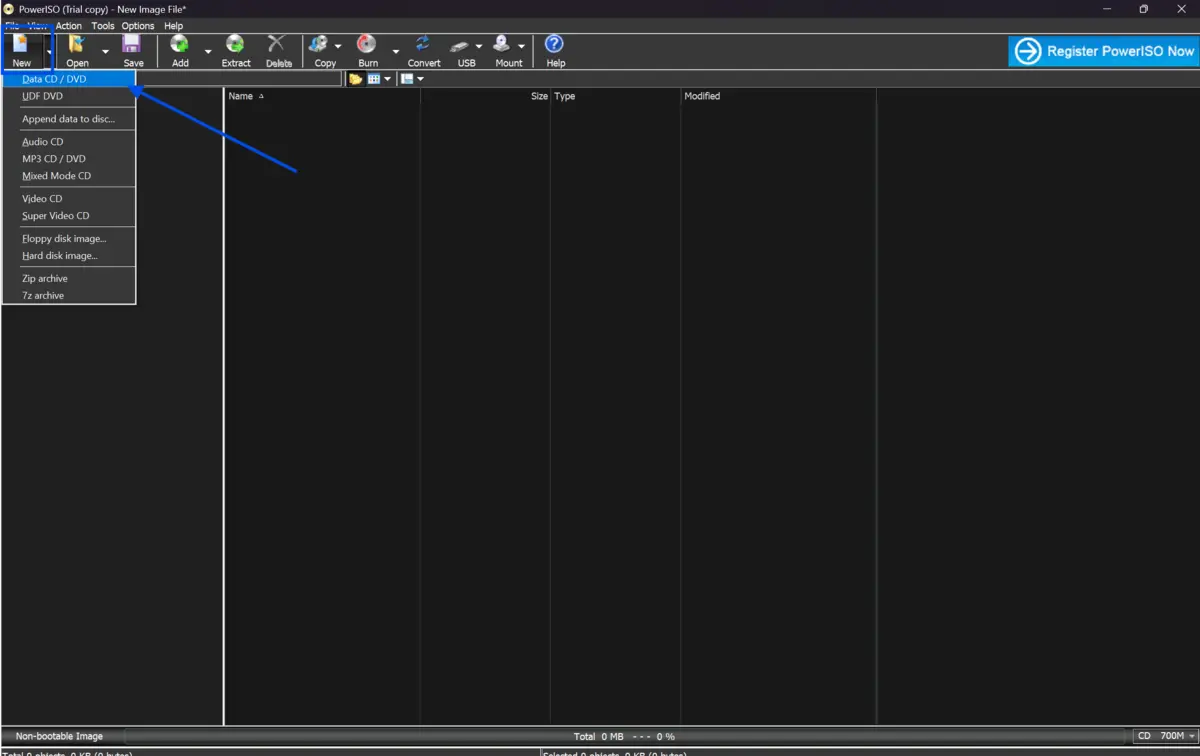
Click the "New" button in the toolbar. A dropdown menu will appear. Select "Data CD/DVD Image" to start a new ISO project.
-
A blank project window opens. You will see an empty file list in the lower panel. This is where your content will appear.
-
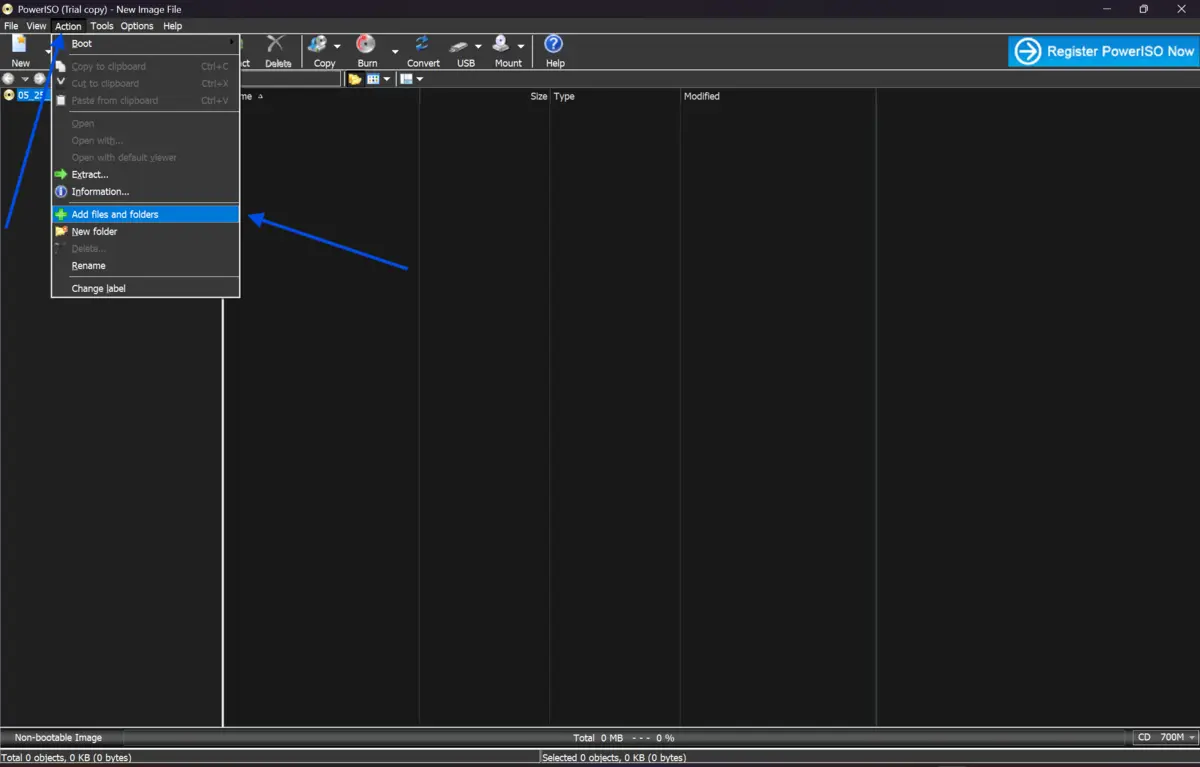
Go to the top menu and click "Action," then select "Add Files and Folders." A file browser will open.
-
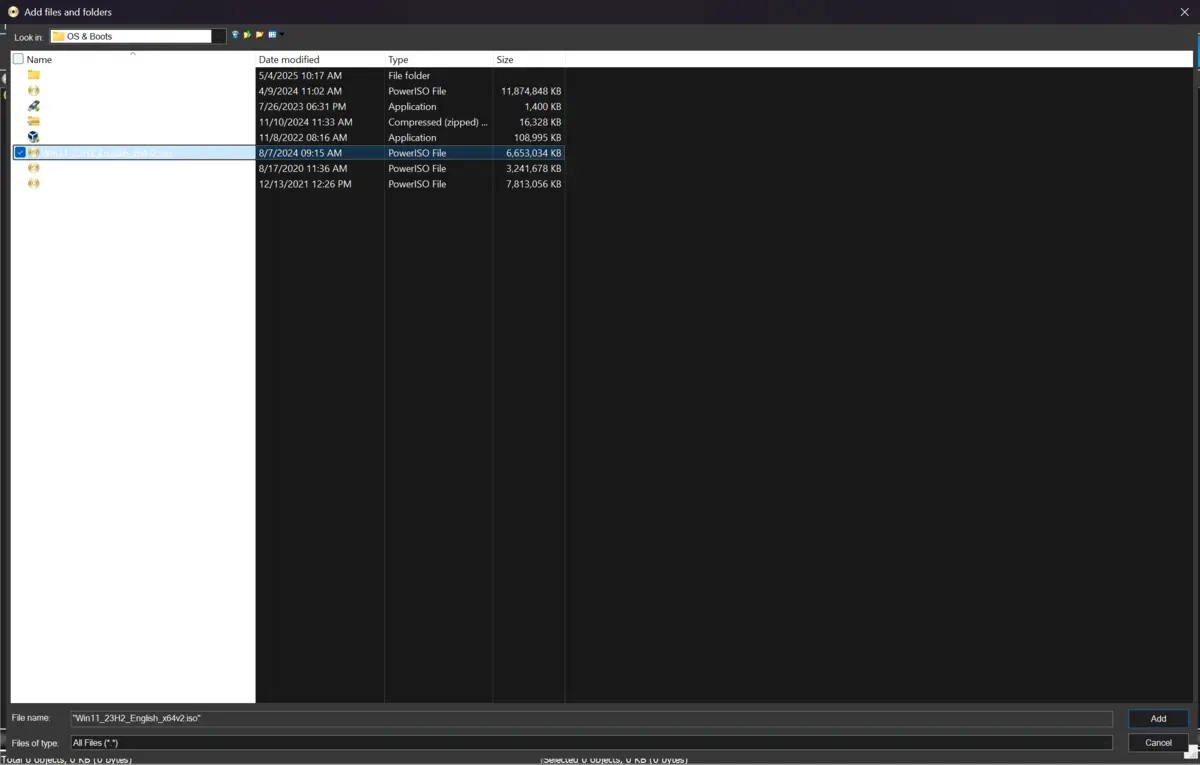
Navigate to the folder or files you want to include in the ISO. Select them and click "Open." The files now appear in the project panel.
-
Check the file list carefully. Make sure all required files are present. You can drag and drop additional files directly into the panel if needed.
-
To remove a file, right-click it and choose "Delete." To rename it inside the ISO, right-click and select "Rename." These edits do not affect your original files.
-
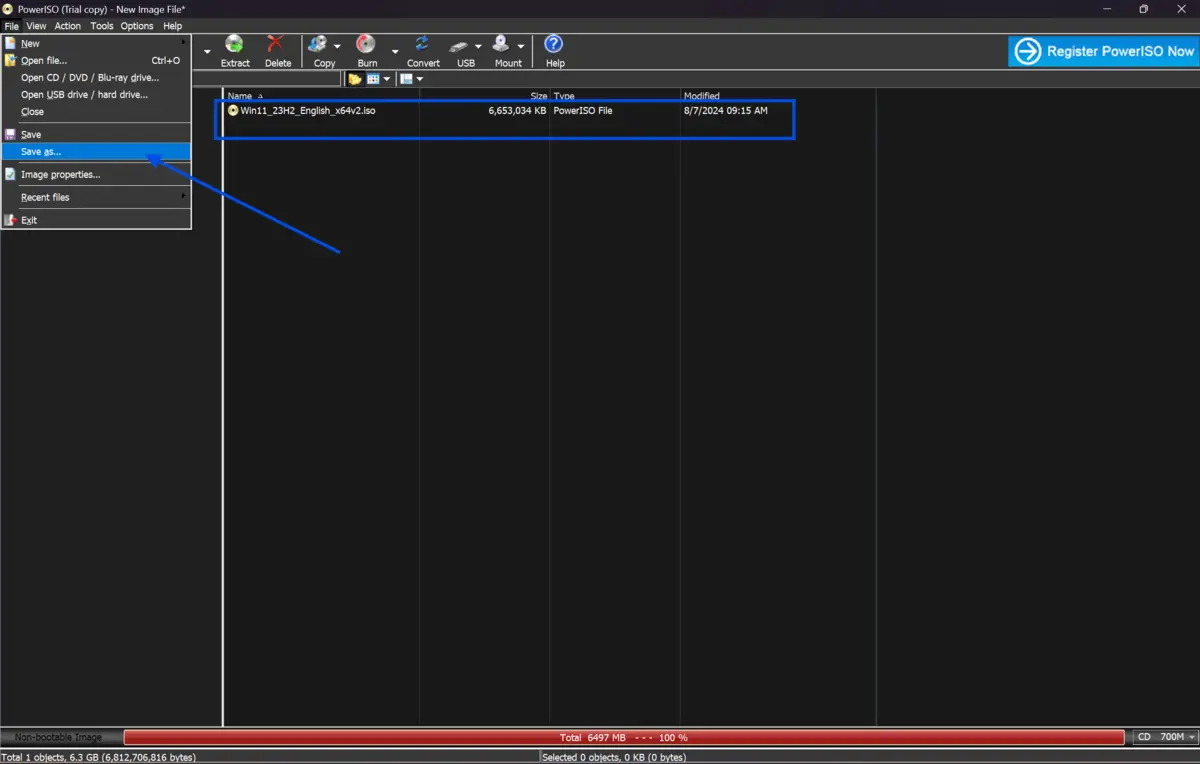
Look at the status bar at the bottom. It shows the total size of your ISO content. Make sure the size fits your target medium, such as a standard 700 MB CD or 4.7 GB DVD.
-
Click "File" from the top menu, then select "Save As." A save dialog box opens.
-
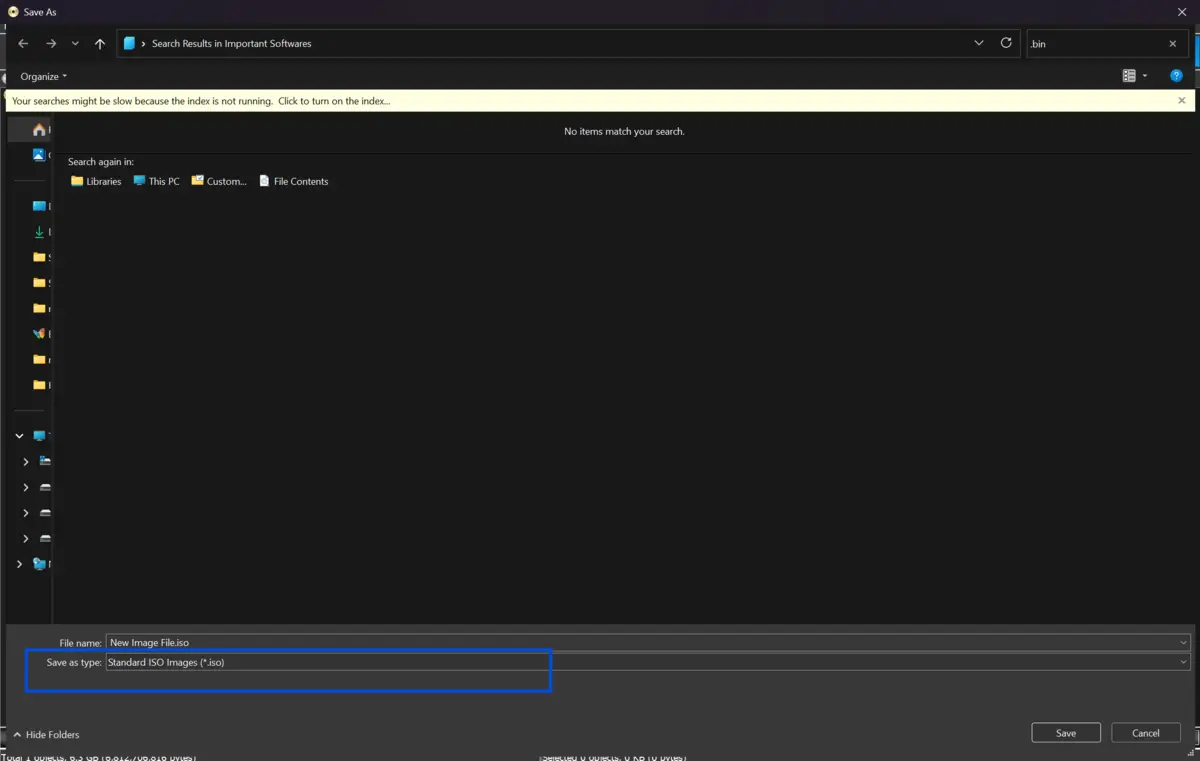
Choose a destination folder on your Windows drive. Type a name for your ISO file. In the "Save as type" dropdown, make sure "Standard ISO Images (.iso)" is selected.
-
Click "Save." PowerISO will process and compile your files. Within seconds, your ISO file is created and ready to use.
Quick Tips
-
Use descriptive file names for your ISO so you can identify them easily later.
-
Keep ISO files on a secondary drive or external storage to avoid filling your system drive.
-
If your source is a physical disc, insert it before launching PowerISO so it detects the drive automatically.
-
Use the built-in compression option for large backups to reduce file size without losing content.
Common Mistakes to Avoid
-
Always check the status bar at the bottom of the PowerISO window before saving.
-
PowerISO supports multiple formats. If you accidentally save it as DAA instead of ISO, other tools may not be able to read the file. Always verify the file type in the Save As dialog.
-
Skipping the verification step leads to corrupted backups. After creating the ISO, mount it in PowerISO's virtual drive and browse its contents to confirm everything is intact.
-
Older versions of PowerISO may have compatibility issues with newer Windows builds. Always download the latest version from our site to avoid unexpected errors.
Pricing & Availability
PowerISO is available for Windows and macOS. It offers a free trial version that allows users to test all core features, including BIN to ISO conversion.
The free version has a 300 MB file size limitation for certain operations, which means large files may require the registered version. A personal license for the full version is available as a one-time purchase. As of the latest information from the official PowerISO website, pricing starts at $39.95 USD for one standard license.
PowerISO does not require a subscription. Once purchased, the license is permanent for that version. Updates within the same major version are typically included.
Final Verdict
PowerISO is a reliable, lightweight tool for anyone who works with disc images on Windows. It covers the full workflow from file collection to ISO creation without requiring technical expertise.
If you need to back up discs, prepare bootable images, or archive software collections, PowerISO handles it cleanly. The steps are precise, the interface is intuitive, and the output is consistent with virtually every platform that reads ISO files.
Download PowerISO from our site today and create your first ISO file in minutes.
FAQs
What is an ISO file used for?
An ISO file is a complete digital copy of a disc or a collection of files stored as a single image. It is commonly used for software distribution, operating system installation, disc backups, and virtual machine setups.
Is PowerISO free to use?
PowerISO offers a free version that works with images up to 300 MB. For larger files and full feature access, you need to purchase a registered license, which is a one-time payment with no recurring subscription.
Can I create a bootable ISO with PowerISO?
Yes. PowerISO supports bootable image creation. You can add bootable information during the project setup by going to "Action" and selecting "Set Boot Image" before saving the final ISO.
What file formats does PowerISO support?
PowerISO supports ISO, BIN, NRG, CDI, DAA, IMG, and several other disc image formats. It can read and write across most standard formats used by disc authoring tools.
Can PowerISO run on Windows 11?
Yes. PowerISO is fully compatible with Windows 11, as well as older versions, including Windows 7, 8, and 10. Always download the latest version from our site to ensure compatibility with your current Windows build.
Comments
Let us know about your thoughts
Explore more articles related to PowerISO
Here you will find all the latest tips and tricks about PowerISO . Also you will get many solution of problems which you may face while using this app.
Published at: Mar 17, 2026
How to Compress ISO Files Using PowerISO
You just downloaded a massive ISO file. It's eating up your storage. And you need...
Published at: Apr 12, 2026
How to Edit ISO Files Without Extracting Them in PowerISO
You have an ISO file. You need to change one file inside it. But you do...
Published at: Apr 12, 2026
How to Mount ISO Files Using PowerISO
You downloaded a game, software installer, or operating system image. The file ends in .iso. Now...

Published at: Apr 17, 2026
How to Extract ISO Files Using PowerISO Without Errors
You downloaded an ISO file. Now what? Most users stare at the iso file and...

Published at: Apr 18, 2026
How to Convert BIN to ISO Using PowerISO
You have a BIN file on your desktop. You try to mount it. Nothing works. Sound...

Published at: Apr 20, 2026
How to Burn ISO to USB or DVD Using PowerISO
You just downloaded an ISO file. Maybe it is a Windows installer, a Linux distro,...


Mount. Burn. Done.
PowerISO is a safe and powerful ISO toolkit that lets you open, edit, compress, and mount disc image files with ease. From creating bootable USBs to backing up old CDs or running virtual drives, it handles it all. Simple yet feature-rich, it’s the go-to choice for managing ISO files.