How to Compress ISO Files Using PowerISO

Asif Mohammad Sovon
Asif Mohammad Sovon, IT Assistant at Bangladesh Air Force and Fileion tech writer, simplifies tech t...
What is ISO Compression Using PowerISO?
Step-by-Step Guide: How to Compress ISO Files Using PowerISO
Does compressing an ISO file damage or change its contents?
Can I convert a DAA file back to ISO after compressing it?
What is the difference between ISO and DAA formats?
You just downloaded a massive ISO file. It's eating up your storage. And you need to share it, back it up, or move it somewhere fast.
ISO files are disk images that are full copies of a CD, DVD, or Blu-ray. That means they hold a lot of data and often a lot of wasted space. Compressing an ISO file can cut its size significantly without affecting what is inside.
PowerISO makes this process simple. It is a trusted disc image tool that lets you compress, convert, edit, and mount ISO files all from one interface.
In this guide, you will learn exactly how to compress an ISO file using PowerISO. You will also get quick tips, common mistakes to avoid, and answers to the most common questions.
Let's dive into the basics before moving to the hands-on steps.
What is ISO Compression Using PowerISO?
An ISO file stores an exact sector-by-sector copy of a disc. It preserves the file structure, boot data, and all content. Because of this, ISO files tend to be large, sometimes several gigabytes.
ISO compression reduces this file size by encoding the data more efficiently. The content stays intact. Only the storage footprint shrinks.
PowerISO is a Windows-based disc image utility. Students, system administrators, gamers, and IT professionals use it regularly. It supports over 30 disc image formats, including ISO, BIN, NRG, IMG, DAA, and more.
Key Features
Size reduction: PowerISO typically compresses large ISO files to a smaller DAA format. Reductions vary by content and are often more effective on text, code, or media-light data.
No data loss: compression is lossless. Every file inside the ISO is preserved perfectly. You can extract or mount the compressed file without any data corruption.
Built-in tools: After compressing, you do not need a separate tool to use the file. PowerISO handles mounting, burning, and extraction in the same application.
Password protection: PowerISO lets you add password encryption when compressing. This is useful when storing or sharing sensitive disk images.
Step-by-Step Guide: How to Compress ISO Files Using PowerISO
-
Download and install PowerISO from Fileion. Run the installer and follow the on-screen prompts. No additional configuration is required for basic use.
-
Launch PowerISO after installation. The main interface opens with a toolbar at the top and a file panel below.
-
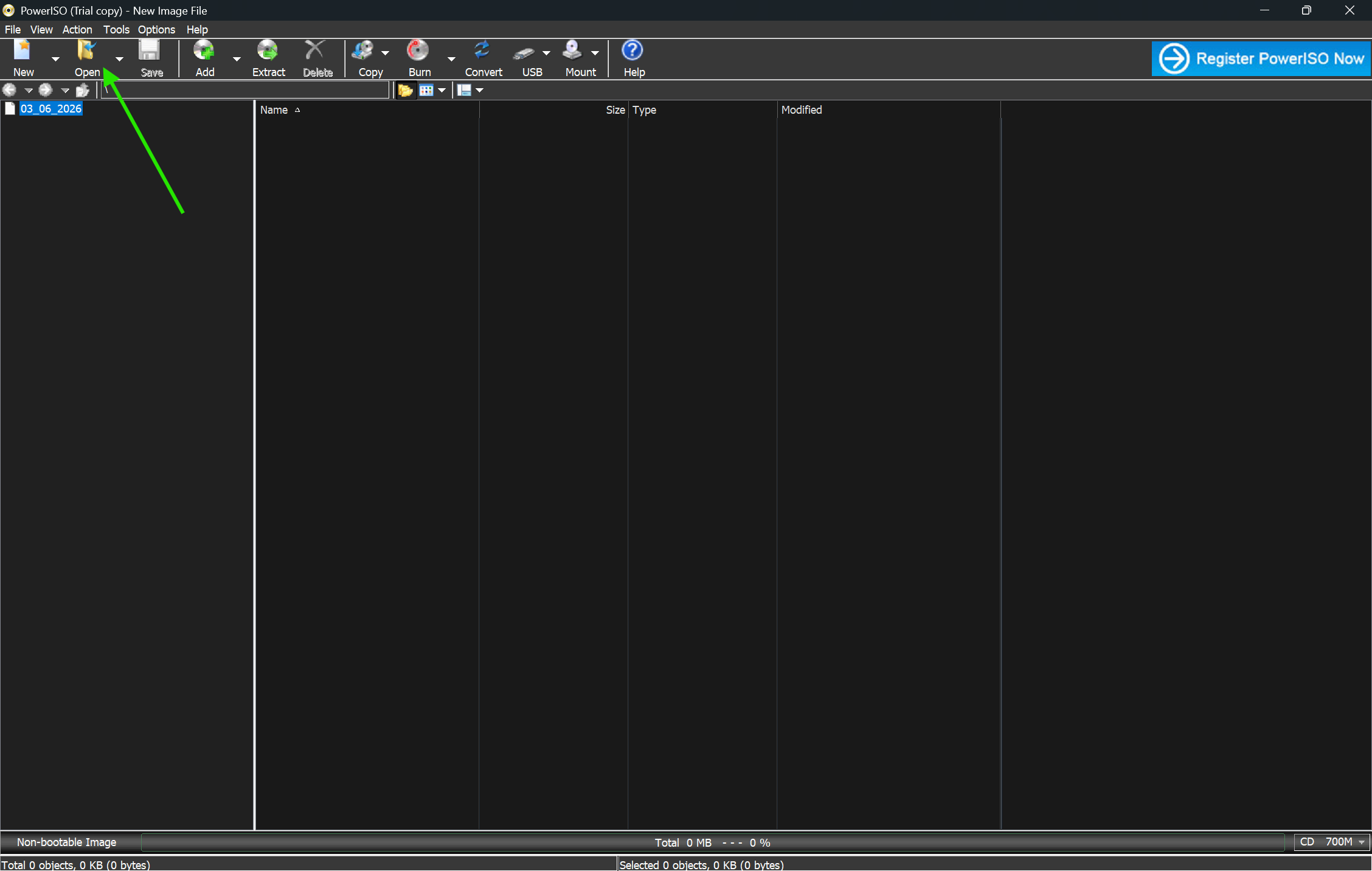
Click "Open" in the toolbar or go to File > Open. Browse your system for the ISO file you want to compress.
-
Select the ISO file and click "Open." PowerISO will load the contents and display all files inside the image in the lower panel.
-
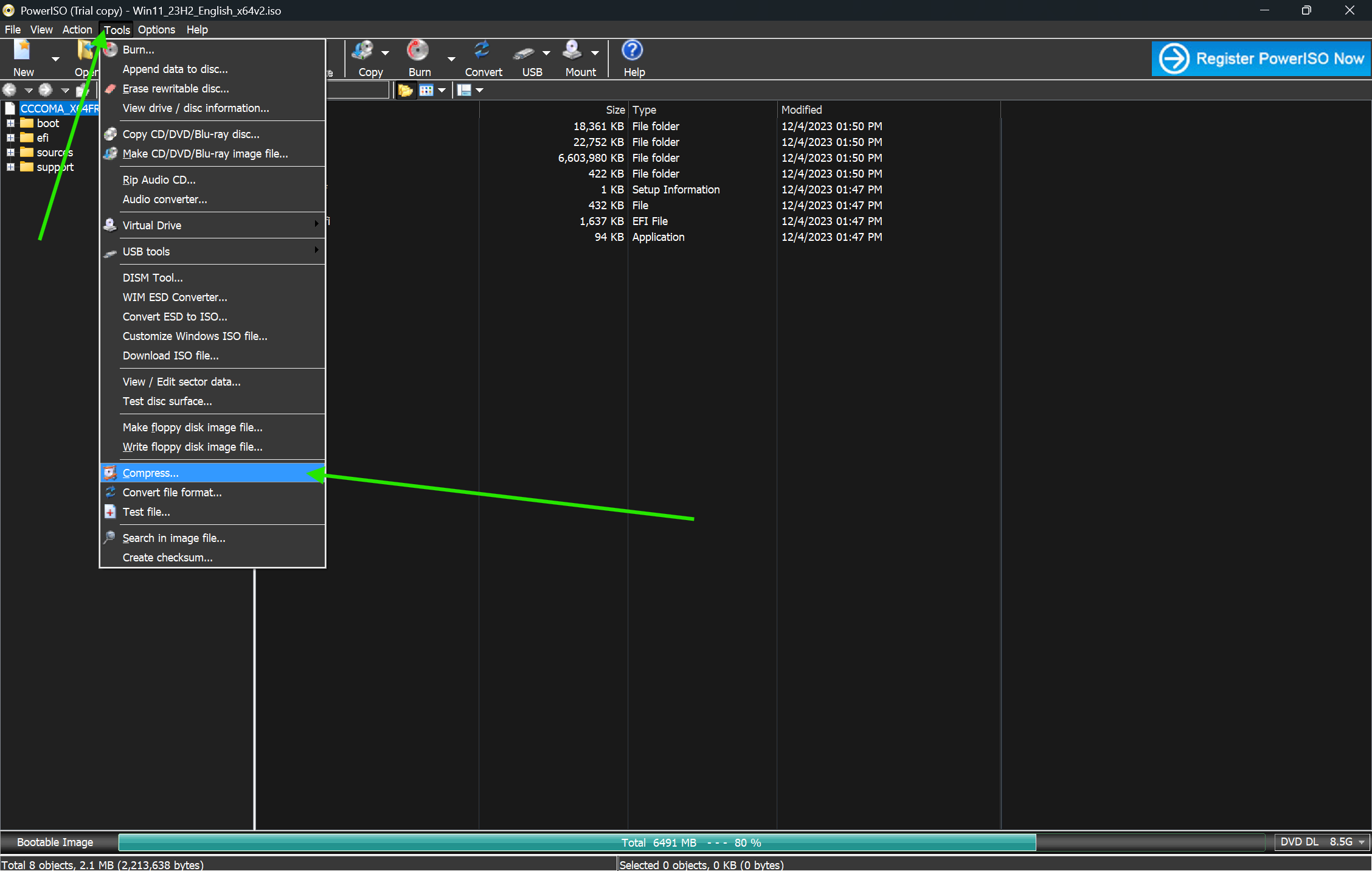
Go to the "Tools" menu in the top navigation bar. From the dropdown, select "Compress." This opens the compression dialog box.
-
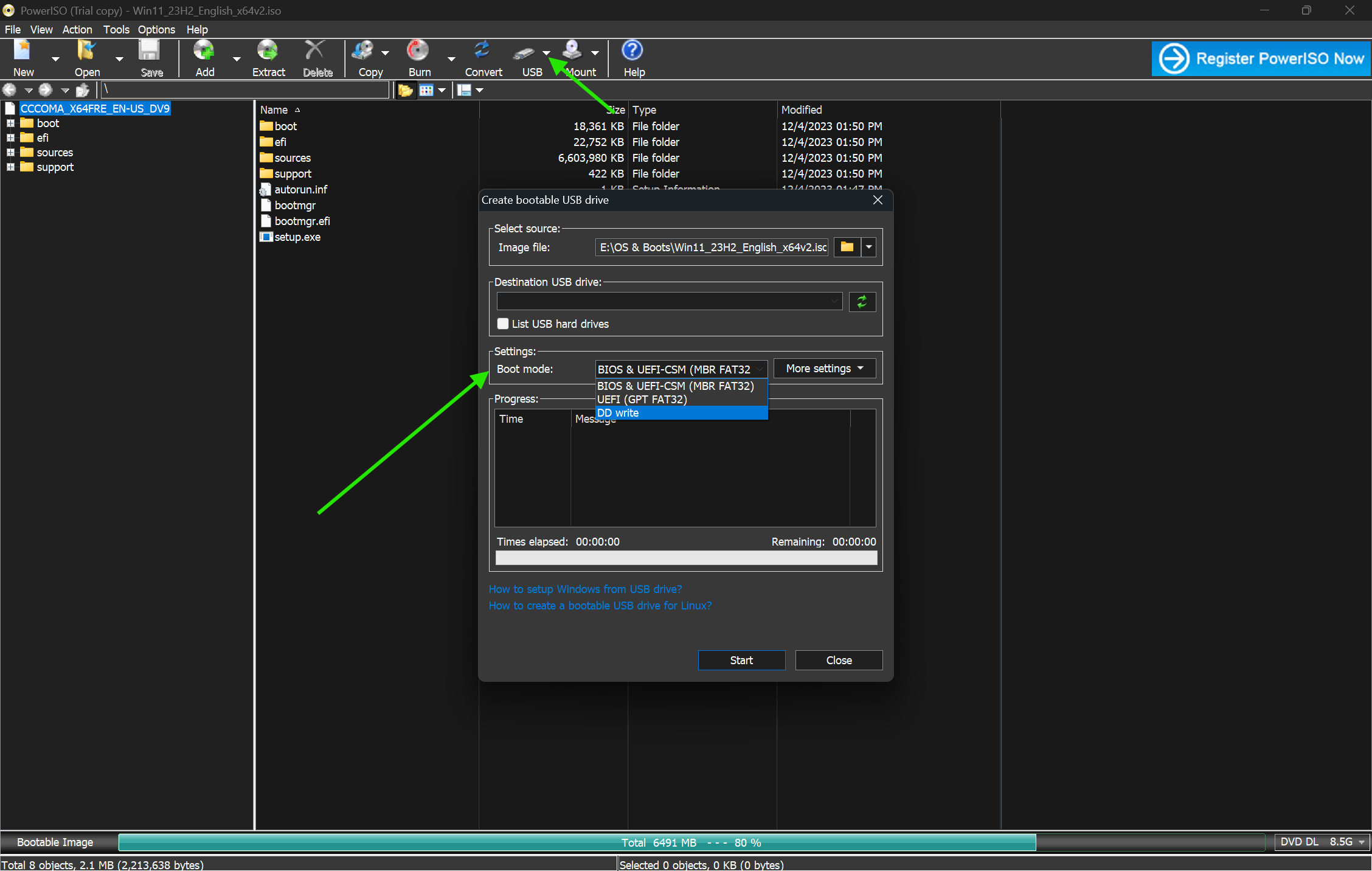
In the compression dialog, choose your output file location. Click the folder icon next to the "Output File" field and select where you want to save the compressed file.
-
Set the output format. PowerISO compresses into the DAA format by default. Keep this setting unless you have a specific reason to change it.
-
Choose your compression level. PowerISO offers several levels: Normal, High, and Ultra. Higher compression takes more time but produces a smaller file. For most users, "Normal" is a good balance.
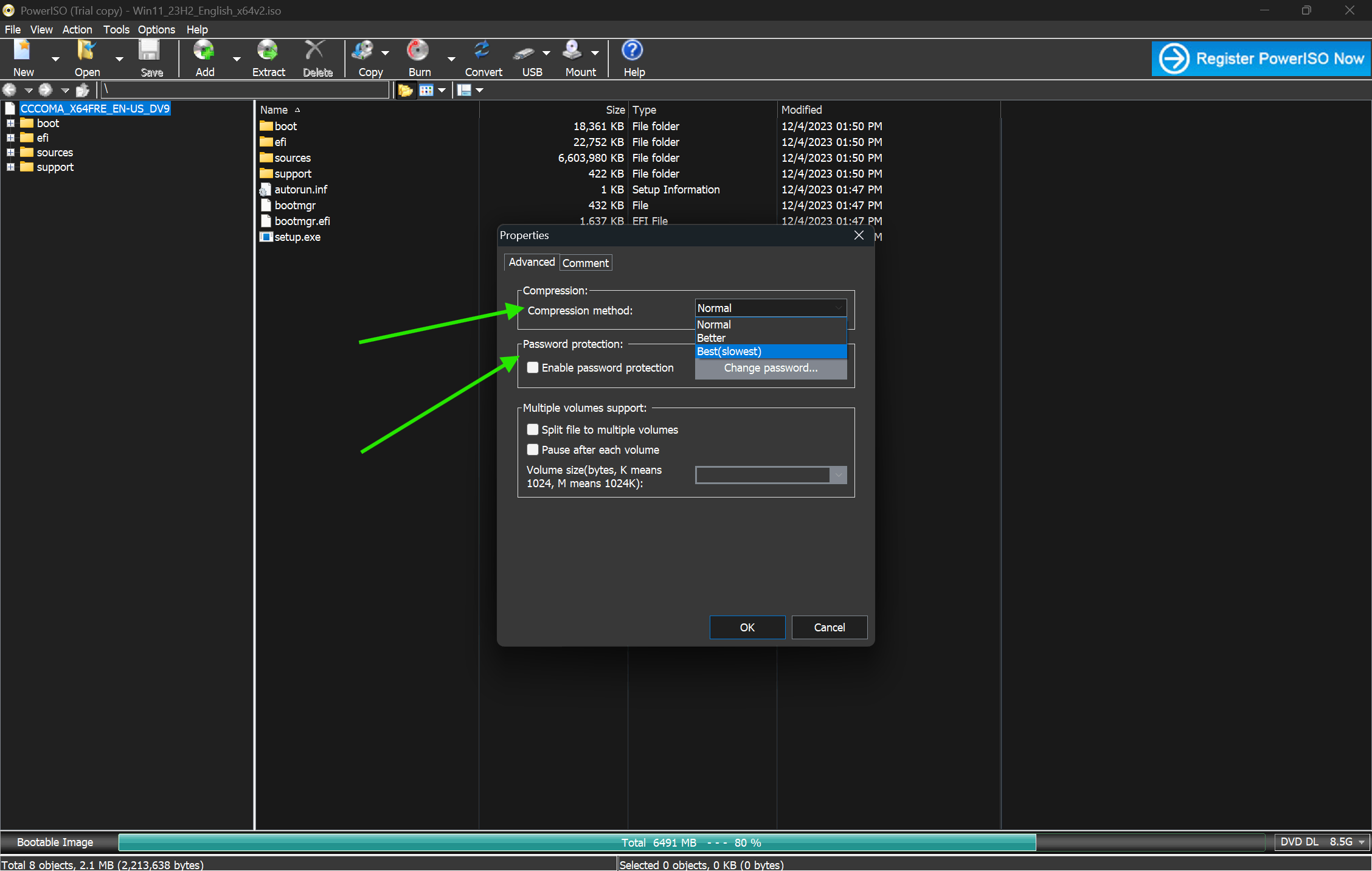
-
If you need to enable password protection. Check the "Encrypt File" option and enter a password if you want to secure the compressed image. Note that this password cannot be recovered.
-
Review all settings. Confirm the input file path, output location, format, and compression level are correct before proceeding.
-
Click "OK" or "Compress" to start the process. A progress bar will appear. Compression time depends on your file size and the compression level you selected.
-
Once complete, navigate to the output folder and verify the new DAA file. You can right-click it in PowerISO to mount, extract, or burn it as needed.
Quick Tips
-
Use "Normal" compression for everyday use. It is faster, and the file size reduction is still substantial.
-
If you plan to store multiple ISO backups, "Ultra" compression saves the most long-term space.
-
You can batch-process files by opening them one at a time and repeating the compression workflow. PowerISO does not natively support batch compression in the standard interface.
-
Always keep the original ISO until you have confirmed the compressed DAA file works correctly. Mount it and spot-check a few files before deleting the source.
-
Rename your compressed files with clear labels. For example:
windows11_backup_compressed.daa. This avoids confusion when managing multiple images. -
If sharing the compressed file with others, make sure they also have PowerISO installed. DAA files are not natively supported by all image tools.
Common Mistakes to Avoid
Deleting original ISO: Many users delete the source file right after compression. If the compressed output is corrupted or incomplete, the original is gone. Always verify the DAA file by mounting it before removing the ISO.
Choosing time-sensitive tasks: Ultra compression can take a long time on large files. If you are in a hurry, stick to Normal or High. Ultra is best for archival work, not quick transfers.
Forgetting password: PowerISO does not store passwords. If you compress a file with encryption and forget the password, the file is unrecoverable. Write it down or use a password manager.
Insufficient space drive: Compression is a two-step process internally. It reads the original and writes the new file simultaneously. If the destination drive lacks space, the process may fail or produce a corrupted file.
Wrong formatting: If you need to share the image with someone using a different tool like 7-Zip or WinRAR, DAA may not be compatible. In that case, consider extracting the ISO to a folder and re-zipping it instead.
Pricing and Availability
PowerISO is available for XP through Windows 11. A macOS command-line version is also available for advanced users.
Free version: PowerISO can be used without a license. However, the free version limits some operations. For example, it can only create image files up to 300 MB without registration.
Registered version: A single-user lifetime license costs $39.95 as of the latest published pricing on the official PowerISO website. This unlocks all features with no subscription required.
You can download PowerISO directly from our site and get started without any complicated setup.
Final Verdict
Compressing ISO files is a practical skill for anyone managing disc images regularly. Large ISO files consume storage quickly, slow down backups, and make transfers inefficient.
PowerISO gives you a reliable, straightforward way to compress those files into a smaller, still-functional format. The workflow is simple & lossless. The built-in tools for mounting and burning make it a complete disc image solution.
It is a solid choice for IT professionals managing system images, gamers archiving large game backups, and anyone who deals with disc images regularly.
Ready to start compressing? Download PowerISO from our site today and reduce your ISO file sizes in minutes.
FAQs
Does compressing an ISO file damage or change its contents?
No. PowerISO uses lossless compression. Every file inside the ISO is preserved exactly as it was. You can extract, mount, or burn the compressed DAA file and get identical results to the original ISO.
Can I convert a DAA file back to ISO after compressing it?
Yes. Open the DAA file in PowerISO, go to Tools > Convert, and select ISO as the output format. PowerISO will decompress and convert it back to a standard ISO file.
What is the difference between ISO and DAA formats?
ISO is a standard, uncompressed disc image format supported by nearly all disc tools. DAA is PowerISO's proprietary compressed format. DAA files are smaller but require PowerISO (or a compatible tool) to open.
How much can PowerISO reduce an ISO file's size?
It depends on the content inside the ISO. Files containing uncompressed text, code, or documents can shrink by 40 to 60 percent. ISO files that already contain compressed data (like video or pre-compressed game files) may only shrink by 5 to 15 percent.
Is PowerISO safe to use?
Yes. PowerISO is a well-established, commercially supported utility that has been available since 2004. It does not contain adware or bundled software when downloaded from the official source.
Comments
Let us know about your thoughts
Explore more articles related to PowerISO
Here you will find all the latest tips and tricks about PowerISO . Also you will get many solution of problems which you may face while using this app.
Published at: Mar 17, 2026
How to Compress ISO Files Using PowerISO
You just downloaded a massive ISO file. It's eating up your storage. And you need...
Published at: Apr 12, 2026
How to Edit ISO Files Without Extracting Them in PowerISO
You have an ISO file. You need to change one file inside it. But you do...
Published at: Apr 12, 2026
How to Mount ISO Files Using PowerISO
You downloaded a game, software installer, or operating system image. The file ends in .iso. Now...

Published at: Apr 17, 2026
How to Extract ISO Files Using PowerISO Without Errors
You downloaded an ISO file. Now what? Most users stare at the iso file and...

Published at: Apr 18, 2026
How to Convert BIN to ISO Using PowerISO
You have a BIN file on your desktop. You try to mount it. Nothing works. Sound...

Published at: Apr 20, 2026
How to Burn ISO to USB or DVD Using PowerISO
You just downloaded an ISO file. Maybe it is a Windows installer, a Linux distro,...


Mount. Burn. Done.
PowerISO is a safe and powerful ISO toolkit that lets you open, edit, compress, and mount disc image files with ease. From creating bootable USBs to backing up old CDs or running virtual drives, it handles it all. Simple yet feature-rich, it’s the go-to choice for managing ISO files.